Tracking strength workouts on a smartwatch takes about two minutes of setup and works the same way on every major platform: open the workout app, pick a strength profile, record your sets as you go, and let the session sync to your phone. The catch is that a watch logs exactly what you tell it to log, so the difference between a useful training record and a wall of noise comes down to which profile you choose and whether you log load manually instead of trusting automatic rep detection.
Most watches built since 2020 handle the basics well: heart rate, session duration, rest alerts and set-by-set entry. None of them measure how much weight you moved. I have logged the same barbell session three ways over the years and the manual log is still the one I look at, because it is the only version that survives contact with a busy training block.
Table of Contents
- What You Need
- Step-by-Step
- 1. Open the workout app and choose a strength workout
- 2. Set goals, rest timers and monitoring options
- 3. Start the workout and log each exercise
- 4. Review the workout data
- 5. Save, name and review progress
- Common Mistakes
- Frequently Asked Questions
- Can a smartwatch automatically track reps during strength workouts?
- Which smartwatch apps are best for recording strength training?
- Does a smartwatch measure weight lifted or resistance accurately?
- How should I use heart-rate data during a strength workout?
- Can I sync my strength workouts from a smartwatch to my phone?
- Do I need a smartwatch to track strength workouts?
- Conclusion
What You Need
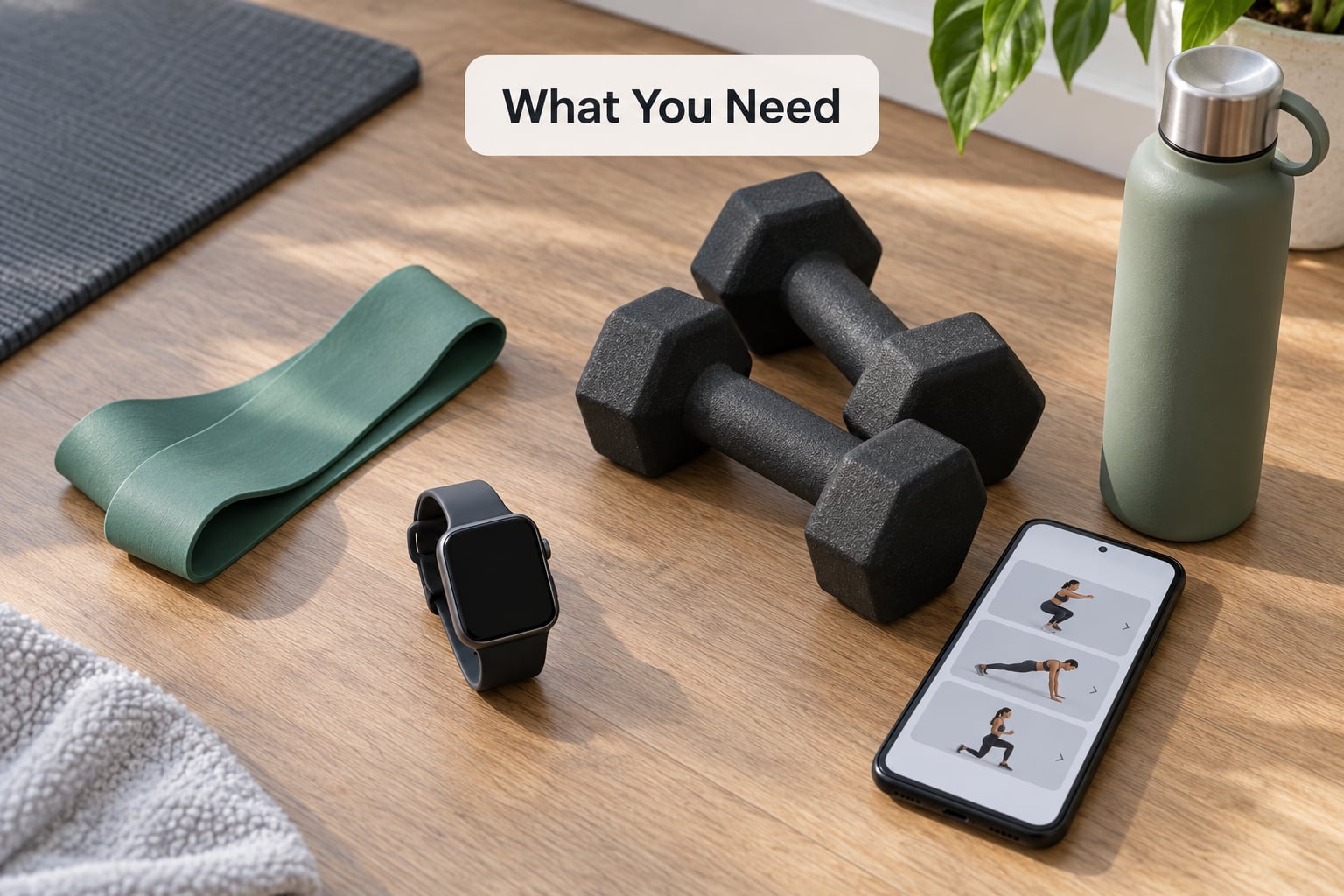
You need three things, and only the first is essential.
- A smartwatch or fitness watch with a built-in strength, gym or generic workout profile. Wear OS watches from Samsung and other Android makers ship with one, and so do Garmin and Apple devices.
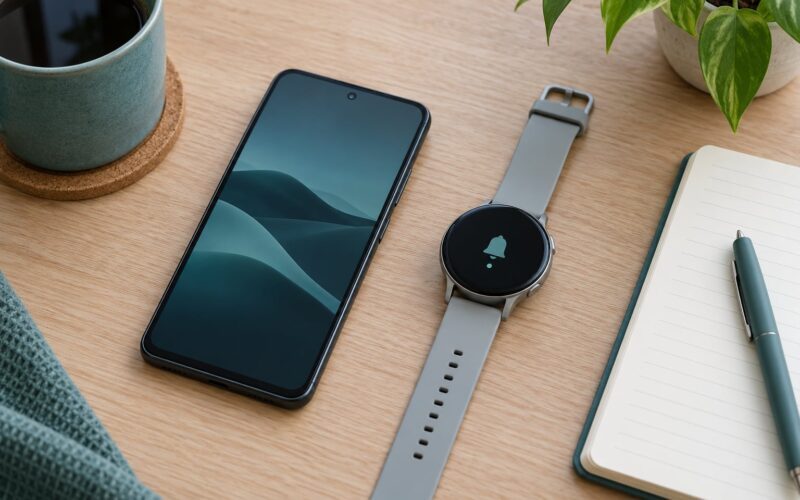
- The companion app on your phone – the same brand’s app, plus Google Health Connect on Android if you want your sessions visible to other apps.
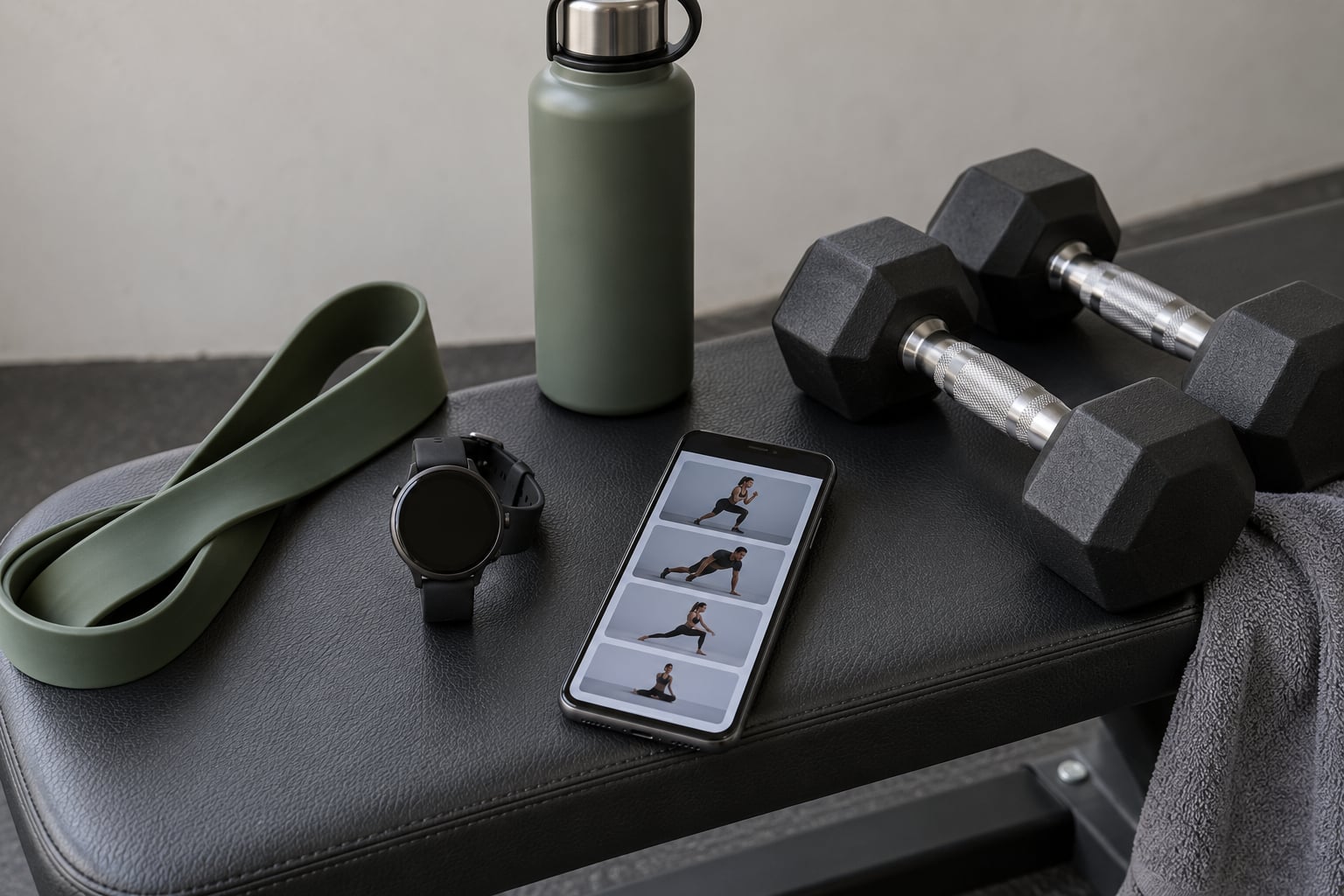
- A logbook or lifting app if you want set-by-set numbers (optional). A paper notebook works. The point is that the watch is good at the timer and the heart rate, and poor at remembering what was on the bar.
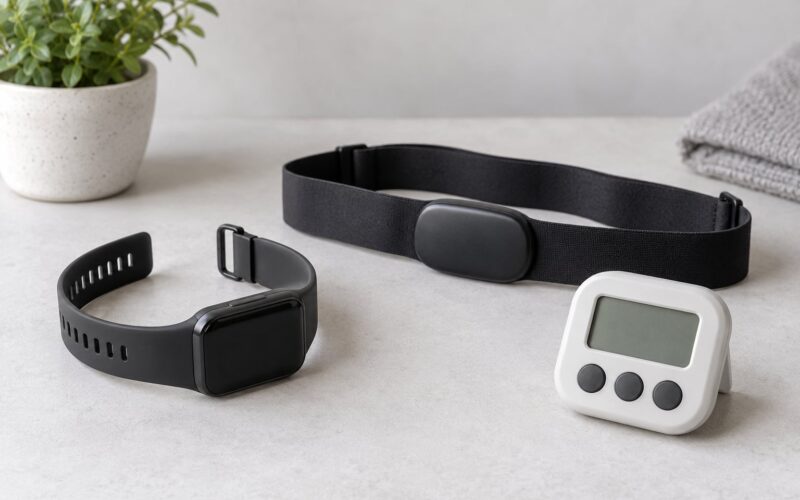
Check that your device can actually log a strength session before you plan around it. Open the workout list on the watch and look for a strength, gym, traditional strength or generic option. If the only choices are running, cycling and walking, you have a basic tracker rather than a workout watch, and you will need a phone app for anything beyond a timer.
Also confirm the watch is worn snugly and sits an inch or two above your elbow bone. Loose straps produce noisy heart-rate readings during heavy compound lifts, and that noise is the main reason people distrust the data.
Step-by-Step
Menu names change between manufacturers and app versions, so treat the labels below as the shape of the process rather than exact tap targets. On Wear OS you will find the list under Workout in Samsung Health or Google Fit; Garmin calls it Activities; Apple puts it under the green Workout app.
1. Open the workout app and choose a strength workout
Open the workout app on your watch and scroll the sport list until you reach the strength entry. On Wear OS watches it usually reads Other or Gym, on Garmin it reads Strength, and on Apple Watch it is Traditional Strength.
Pick that profile rather than the generic workout mode. The strength profile switches on the accelerometer-driven set detection and the rest alerts that a plain stopwatch session skips. For calisthenics, circuits and anything with no barbell, choose a generic or other profile and log the movements by name yourself – automatic detection has nothing to recognise.
2. Set goals, rest timers and monitoring options
Before the first warm-up set, configure what you want the watch to do for you rather than making you reach for it mid-session.
- Rest timer – set it to your normal between-set interval. Most watches default to one minute, which is too short for heavy compound work. Powerlifters usually run two to five minutes.
- Repetition or set targets – entering an expected rep count lets some devices close out a set when motion stops.
- Heart-rate alerts – useful for conditioning blocks, mostly noise for a straight strength session.
- Units and thresholds – check kilograms versus pounds before you type a single number, because wrong units corrupt every volume calculation that follows.
Two quick settings are worth the effort here. Turn on audio or haptic rest alerts so you can leave the phone in a locker, and make sure auto-pause is off if you are doing straight sets, since it will stall the timer every time you rack the bar.
3. Start the workout and log each exercise
Press start before you un-rack the bar. This is the single most common failure – a session that was never started has no heart-rate curve, no duration and no rest data to recover later, and reconstructing it from memory is guesswork.
Then use a repeatable method for every exercise. Record the exercise name, the load, the reps, and the number of sets. On most watches this means scrolling a list during the rest period between sets, which is slow, so keep a fixed routine: log the set while racking the bar, use the rest period to fix any typo, and stop mid-session to edit.
Some users record the whole session on paper or in a phone lifting app and enter only duration into the watch at the end. That hybrid catches most of the benefits with far less tapping. What it does not catch is the rest intervals and heart rate per set, so it suits volume-day sessions rather than a heavy top set.
Automatic rep counting needs a warning label. Watches estimate repetitions from wrist motion, which means cable crossovers, machine flyes and slow eccentric work get misread constantly, and compound barbell lifts sometimes register a single five-rep set as several minutes of work. Garmin users have posted on the brand’s own forums about strength mode recording no reps at all for barbell sessions. Treat auto counts as a rough pass, then correct the log before you save.
4. Review the workout data
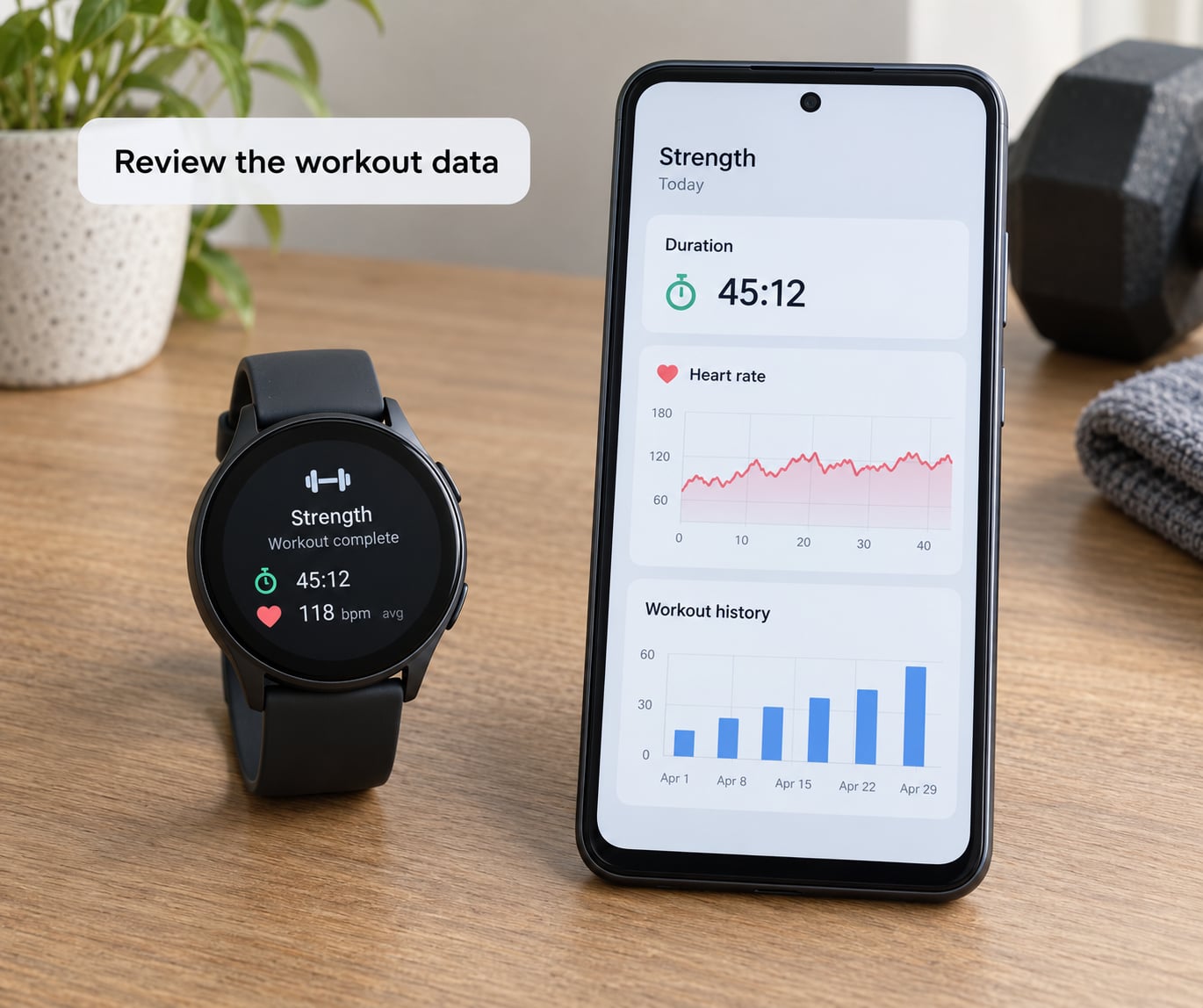
End the workout and open the session summary on the watch first, then the full detail in the companion app on your phone. Expect to find duration, an average and peak heart rate, calories, and whatever set data your profile captured.
Read them like this. Duration and rest intervals are reliable, because they are counted rather than estimated. Session heart rate is good on steady work and drifts during heavy sets, where straining and breath-holding spike the reading. Calories are the weakest number on the page – research testing wrist devices against laboratory measurement has consistently failed accuracy thresholds during resistance exercise, so treat that figure as a rough magnitude, not a budget.
What is worth your attention is the trend, not the session. Volume load – sets multiplied by reps multiplied by load – is the simplest honest signal of whether you are doing more work over time. An estimated one-rep max per lift tells you whether that work is getting harder rather than just longer. Everything else on the summary screen is context.
5. Save, name and review progress
Save the session with a name you will recognise in six months. Day names work if you never repeat a session; exercise-focused names such as Lower – Squat and Deadlift are better for anyone running a structured block.
Let the session sync before you take the watch off, and check that it arrived in the phone app. On Android, the usual path is watch to brand app to Health Connect, and from there into whichever lifting app you use. Note that the sync is not always clean: lifting apps often fail to push non-lifting sessions into Apple Fitness, Strava or Garmin Connect, so verify the data landed somewhere you will actually read it.
Then compare this week against last week on one number. Volume load per exercise is the one I would put in front of a coach. If your current block looks flat for three sessions in a row, either your log is incomplete or your programming is.
Common Mistakes
Choosing a cardio profile for lifting. Running or walking modes give you a heart-rate curve and little else, and some will not even record a rest alert. Switch to the strength or gym entry.
Forgetting to start the workout. This is the most common and the most expensive mistake, because the session is simply gone. Make starting the watch part of your warm-up routine – same as putting the bar on the rack.
Trusting automatic rep counts. Motion-based detection misreads isolation work, cables and slow eccentrics. If the number looks wrong, correct it while you still remember, because fixing it a day later is guesswork.
Ignoring rest data. The gap between your sets is often more informative than the reps. A session where rest quietly crept from two minutes to four tells you something the set count does not.
Comparing calories across devices. Numbers from two different watches for the same session will not agree, and neither is a measurement. Compare within one device over time, or drop the metric entirely.
Expecting the watch to see muscular damage. Soreness and recovery state after a heavy leg day are invisible to wrist sensors, so a recovery or readiness score the morning after lifting will not reflect the session. Judge how you feel instead.
Two smaller habits help more than any feature. Name the load in the same unit every session, because mixed kilograms and pounds wreck your volume trend. And log calisthenics manually rather than skipping them, since a generic profile will count the time and nothing else.
Frequently Asked Questions
Can a smartwatch automatically track reps during strength workouts?
Some can, and you should not rely on it. Watches estimate repetitions from wrist motion, so barbell work is reasonably readable while cables, machines, isolation moves and slow eccentrics are often miscounted or missed entirely. Users have reported on Garmin forums that strength mode recorded no reps at all for a barbell session. Automatic counting works well enough to save you typing on simple dumbbell work, then edit before saving.
Which smartwatch apps are best for recording strength training?
Use the app your watch already ships with for the session record – Samsung Health or Google Fit on Wear OS, Garmin Connect on Garmin, the built-in Workout app on Apple Watch – then add a dedicated lifting app if you want clean set-and-rep history and charts. Serious lifters usually treat the watch as the timer and heart-rate tool and the phone app as the real log.
Does a smartwatch measure weight lifted or resistance accurately?
No watch measures load. Bar and dumbbell weight is whatever you type in, so the accuracy of your volume data depends entirely on entering it consistently in one unit. Machine stacks and resistance bands are even less precise, because the printed numbers do not always match the resistance you experience. Keep a note of what you loaded; the watch cannot see the plate.
How should I use heart-rate data during a strength workout?
Use it as context, not as a target. Wrist sensors read well during steady work and drift during heavy compound sets, where straining and breath-holding push the reading higher than your actual effort. A useful pattern is a steady rise across sets with a clear drop during each rest period. Recovery scores read the morning after a heavy session do not capture muscular fatigue, so treat them as one signal among several.
Can I sync my strength workouts from a smartwatch to my phone?
Usually, and it happens automatically once the watch is near your phone and unlocked. On Android the path is watch to brand app to Google Health Connect, and from there into other fitness apps. The reliable part is the session summary. Lifting apps often fail to push non-lifting sessions into other platforms, so open the phone app after a session and confirm your sets actually arrived before relying on the sync.
Do I need a smartwatch to track strength workouts?
No, but it solves one specific problem well: rest timing without touching your phone. A simple interval timer app, a paper log and a lifting app on your phone cover the set-and-rep side more accurately than any watch. Plenty of experienced lifters use exactly that combination. The watch earns its place when you want heart rate, duration and rest alerts in the same session while your phone stays in a locker.
Conclusion
Install or update your watch’s companion app, confirm a strength or gym profile shows in the workout list, and run one short test session where you log a single exercise manually and let it sync. Once that round trip works, the rest is habit: start the workout with the bar, keep the unit consistent, and compare volume load rather than calories each time you open the log in 2026.