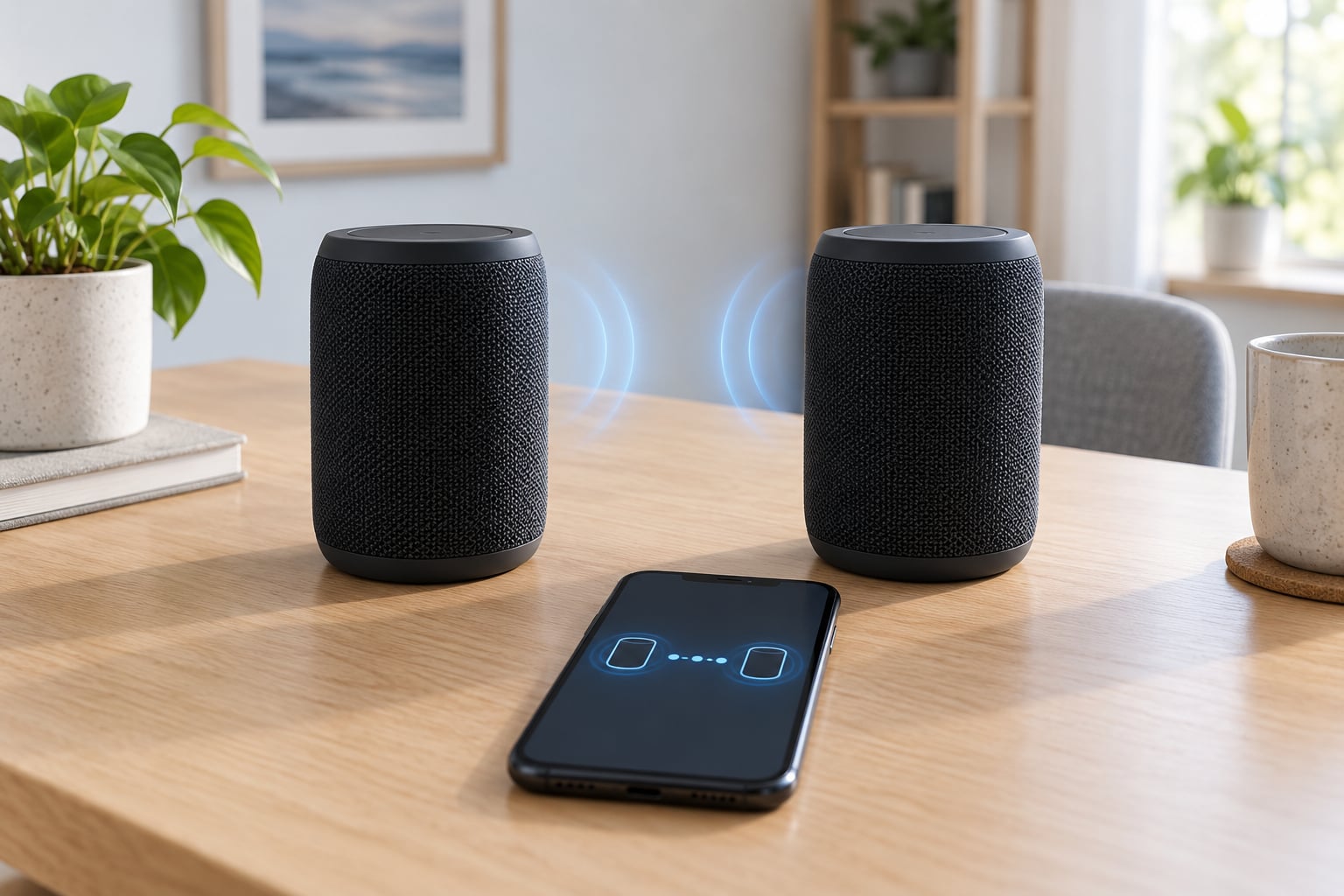
Yes, you can, but the two speakers pair to each other, not to your phone. Standard Bluetooth is one-to-one, so a phone will not stream one song to two unrelated speakers on its own. What you need is a stereo pairing mode built into the speakers themselves, usually called true wireless stereo (TWS), that links the two units and assigns one the left channel and the other the right channel. The phone then pairs with a single speaker and the audio is relayed to the second. It takes about five minutes once you know which button to hold.
The catch is compatibility. TWS normally only works between two identical models, or two models from the same manufacturer that share a stereo feature. Two different brands will not link no matter how many times you try, and that is the single most common reason people give up on this.
Table of Contents
- What You Need Before You Start
- Step-by-Step: How to Pair Two Bluetooth Speakers for Stereo Sound
- 1. Check Whether the Speakers Support Stereo Pairing
- 2. Prepare Both Speakers and the Audio Source
- 3. Pair the First Speaker
- 4. Add the Second Speaker Through the Stereo Feature
- 5. Assign the Left and Right Channels
- 6. Test and Save the Stereo Configuration
- Common Mistakes and What to Do About Them
- Frequently Asked Questions
- Can I pair two Bluetooth speakers from different brands for stereo sound?
- What does TWS pairing mean on a Bluetooth speaker?
- Does my phone connect to both speakers, or do the speakers connect to each other?
- Is multipoint the same thing as stereo pairing?
- What should I do if my phone has no stereo or dual audio setting?
- Conclusion
What You Need Before You Start
You need four things, and two of them trip up most first attempts.
- Two speakers that support stereo pairing in the same product family. Read the spec sheet, not the listing title.
- A fully charged audio source with Bluetooth, normally your phone or tablet.
- The manufacturer’s companion app if the brand uses one to drive pairing, since app pairing replaces the button sequence entirely.
- A clean Bluetooth connection, which usually means resetting the phone’s Bluetooth before you start.
The phone is the source here, never the second speaker. It sends audio once, to the master speaker, and the master relays the other channel to its partner.
Both speakers should be on the same firmware version. A mismatch between two otherwise identical units is a quiet cause of pairing failures that no amount of button-holding will fix. Most companion apps push a firmware update the first time you open them, so install the app on both speakers before anything else.
Step-by-Step: How to Pair Two Bluetooth Speakers for Stereo Sound
1. Check Whether the Speakers Support Stereo Pairing
Search the manual for stereo pairing, TWS, dual speaker, stereo pair, left and right channel, or a brand-specific name like PartyBoost, SimpleSync, Party Chain, PartyCast or Sound Play.
If the manual has no such term, the speakers are almost certainly single-output units that your phone can only connect to one at a time. You can still play them together through a manufacturer app or an audio splitter, but you will not get a real left and right split.
2. Prepare Both Speakers and the Audio Source
Charge both speakers fully. A pairing attempt that drops halfway through because one unit was at 12 percent is frustrating in a way a flat battery warning is not.
Install the companion app if the brand has one, and update both speakers through it. Then clear stale pairing memory on the phone by toggling Bluetooth off and back on, and put both speakers within about a metre of the phone during setup. Distance matters more than people expect in the first thirty seconds.
3. Pair the First Speaker
On Android, swipe down twice to open Quick Settings and tap the Bluetooth tile, or go to Settings, then Connected devices, then Bluetooth pairing and turn it on. On stock Android, Settings, then Connections, then Bluetooth.
Put the first speaker into pairing mode by holding its Bluetooth button until the indicator flashes rapidly. Tap its name in the available device list and wait for the status to change to connected. Confirm that before you go any further, because the stereo step depends on this connection being live.
4. Add the Second Speaker Through the Stereo Feature
Leave the Bluetooth menu now. This is where most people go wrong, because they expect a second speaker to simply appear in the list.
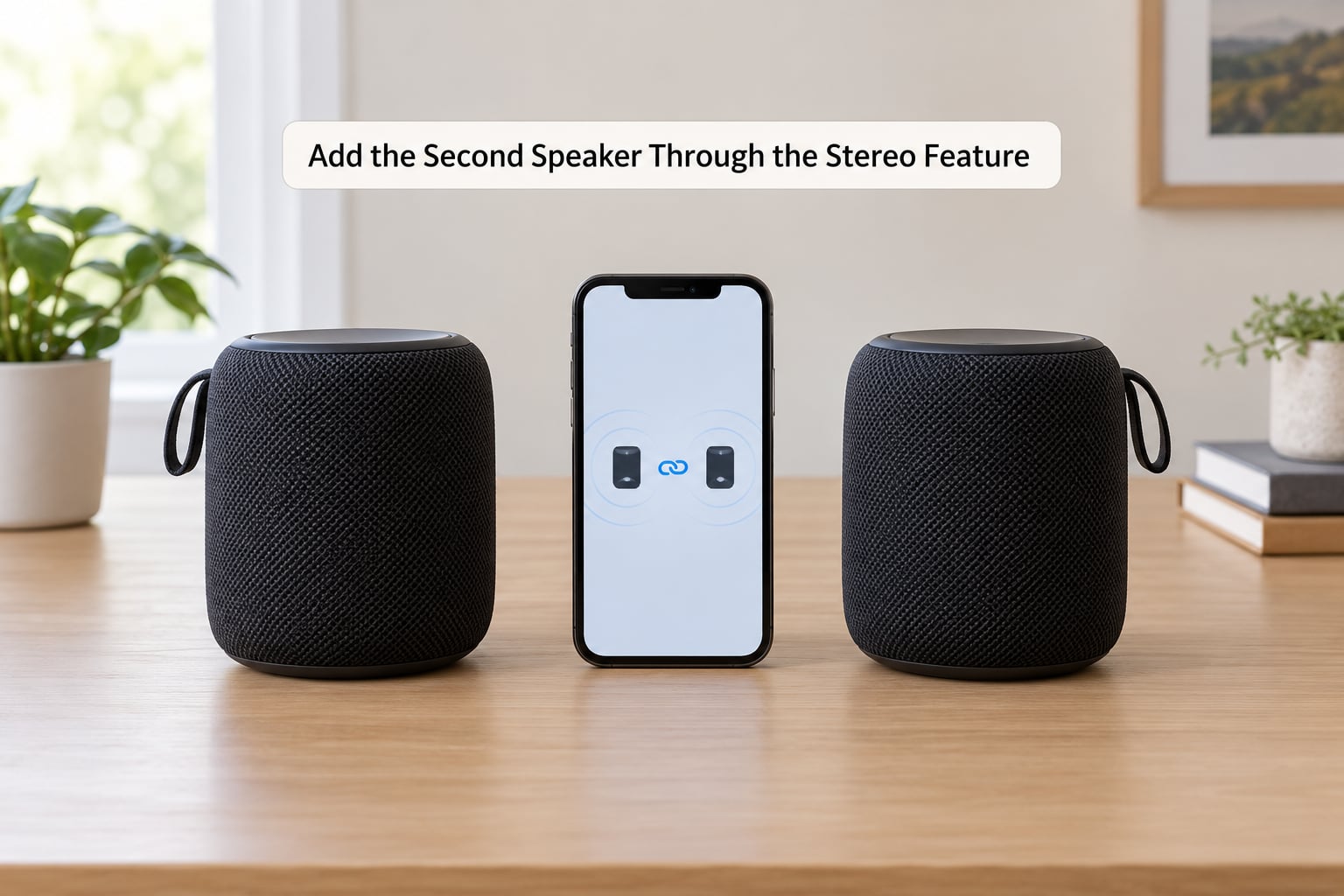
Instead, the two speakers link directly. Power on both units first, then press and hold the TWS, pairing or party button on both speakers at the same time for roughly three seconds. Manufacturers such as Bell+Howell, DELXO and Blaupunkt all document essentially this same sequence: both on, both buttons held, wait for the tone, then connect the phone to one speaker.
You should hear a confirmation tone or click and the indicator pattern will change, often from rapid blinking to a slower double blink. Once that happens, the pair is linked. If your brand drives this from an app instead, the app will show both speakers and ask which one to add.
5. Assign the Left and Right Channels
In most designs the speaker you paired to the phone becomes the master and takes one channel, while the second unit takes the other. Some apps and some party modes let you choose, with options such as left, right, both or stereo pair.
Swapping the assignment changes which side of the soundstage the guitar sits on, and nothing else. Nothing breaks and no setting is lost, so if the image feels reversed, swap it back. For the widest result, put the speakers about 2 to 3 metres apart at roughly ear height, angled inward toward where you sit.
6. Test and Save the Stereo Configuration
Play a track with clear vocals and obvious left to right panning. A stereo test tone, where a voice or piano note moves hard left then hard right, makes the channel assignment obvious within seconds.
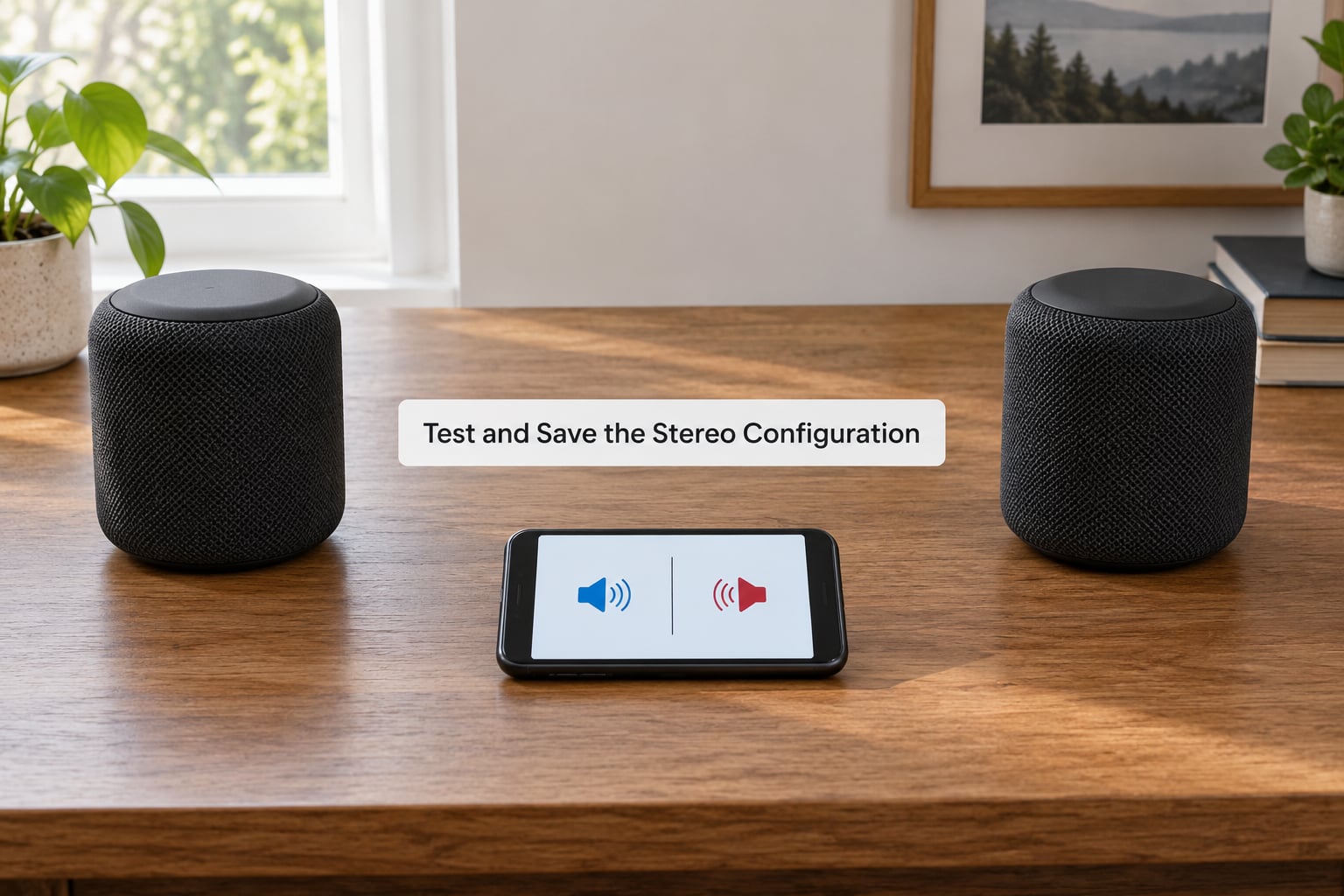
Then disconnect and reconnect once. If the pair survives that, most speakers will re-link automatically the next time you power them on, and you can forget the button sequence. If they come back as two separate speakers, note that behaviour now, because it means the pair is not remembering the link and you will repeat step 4 each session.
Common Mistakes and What to Do About Them
Only one speaker pairs. On a thread in r/AndroidQuestions, the classic version of this is a user with two of the same speakers who can pair each one to the phone but never both at once. The answer there, and the correct one, is that the speakers need to pair to each other first. Complete step 4 and the phone only ever sees one of them.
The wrong button. Holding the Bluetooth pairing button puts the speaker into pairing mode, which is a different thing from TWS mode. You end up with two speakers advertising themselves to the phone and neither linking. Find the stereo or party button specifically.
Red indicator blinking, no link. A blinking red light usually means the unit is trying to pair or reset. Clear the speaker’s pairing memory, which on most models means holding the volume down plus Bluetooth for about ten seconds until the light changes, then start step 4 again from both speakers powered on.
Both speakers play but it sounds like one. The two units are connected independently rather than linked, so each is playing mono. Check whether the app is set to stereo pair or dual-speaker mode instead of a party mode.
One channel is silent. Usually one speaker is still paired to another phone or tablet from earlier. Reset the pairing memory on both units and pair again.
Audible lag between channels. This is the most common complaint in speaker forums and it is inherent to the method. Wireless relay adds a small delay that the ear picks up on percussion. Keeping the two speakers close and both on the latest firmware reduces it, and dual audio through the phone does the same thing.
The two units swap channels on reconnect. Nothing to fix. Some models reassign the master after a power cycle. Pick your channels in the app each time if that bothers you.
It helps to keep three modes straight. True stereo means one speaker is left and the other is right. Dual audio or dual independent playback means the phone sends two separate mono streams, so you get volume but no stereo image. Party mode usually means both speakers play the same full mix at full volume for even coverage across a room. Pairing two speakers for stereo sound means you want the first of those three.
If your phone offers a dual audio or stereo option under its Bluetooth or connected device settings, that is a separate route from the button sequence above, and it works with two different brands. It gives you two mono streams rather than a true left and right split, which is fine for filling a room and pointless for reproducing a soundstage. On iPhone, expect no such option; Apple does not expose a dual speaker control for third-party Bluetooth speakers.
Frequently Asked Questions
Can I pair two Bluetooth speakers from different brands for stereo sound?
Usually not. True stereo pairing depends on the manufacturer controlling which unit is left and which is right, so it normally needs two identical models or two models from the same stereo-capable series. Cross-brand pairs can still work as two independent mono speakers through a dual audio setting or a manufacturer app, but you will not get a real channel split. A Bluetooth transmitter with two outputs is the other workaround.
What does TWS pairing mean on a Bluetooth speaker?
TWS stands for true wireless stereo. It is a pairing mode built into many Bluetooth speakers that lets two units link to each other wirelessly, with one acting as the left channel and the other as the right channel. You pair only one speaker to your phone and the audio is relayed to the second. You see the term on manuals, packaging and product pages under several brand names, including PartyBoost, SimpleSync, Party Chain and PartyCast.
Does my phone connect to both speakers, or do the speakers connect to each other?
In true stereo pairing, the speakers connect to each other and the phone connects to only one of them. That speaker becomes the master and handles the Bluetooth audio from your phone while passing the second channel to its partner. If your phone genuinely shows two connected speakers at the same time, you are using a dual audio feature instead, which sends two independent mono streams and does not create a stereo image.
Is multipoint the same thing as stereo pairing?
No, and the two are often confused. Multipoint lets one speaker hold connections to two phones or tablets, so you can switch between them. It has nothing to do with the second speaker. Stereo pairing links two speakers to each other and gives one the left channel. Multipoint is about the source device, stereo pairing is about the output, and a speaker can support both without them being related.
What should I do if my phone has no stereo or dual audio setting?
Use the pairing mode built into the speakers instead. Pair the two units to each other first through their TWS or party button, then connect your phone to just one of them. Most Android phones from Samsung, Xiaomi and OnePlus ship with a dual audio option somewhere in Settings, Connected devices or Sound and vibration, but if yours does not, the speaker-side method is the reliable one and it also gives you a genuine stereo image rather than two mono streams.
Conclusion
Start by confirming both speakers belong to one supported stereo-pairing family. If they do, charge them, install the manufacturer’s app, update both units to the same firmware, and power them on together before holding the stereo button on both for about three seconds. Then pair your phone to just one speaker and test with a panned track. The ordinary Bluetooth menu will never get you a stereo pair, and that is expected behaviour rather than a fault on your phone.
Updated for 2026.