Most people land here typing why wont my android phone update, then get buried in theories. If your Android phone won’t update, the cause is almost always one of four things: not enough battery, no stable Wi-Fi, not enough free storage, or a temporary system glitch. All four are fixable in about ten minutes, and none of them need a repair shop. Work through the fixes below in order, cheapest first, and stop as soon as the problem clears.
An Android update downloads a full system package, verifies it, then installs it during a restart. When the download stalls, the verification fails, storage runs out mid-install, or an app blocks the install, the process aborts and your phone stays on the old version. That is the whole mechanism behind nearly every “stuck update” complaint I see.
One reassurance before you start: an update that will not complete is very rarely a broken phone. Plenty of owners panic and permanently switch off automatic updates, which is the worst possible outcome, because those same updates carry the security patches that protect you from malware.
Menu names below are for current versions of stock Android, Xiaomi MIUI and HyperOS, and Samsung One UI. Older Android versions use slightly different wording, and I have noted the differences where they matter.
Table of Contents
- What You Need
- Step-by-Step: Why Wont My Android Phone Update
- Check That the Phone Meets the Update Requirements
- Restart the Phone and Check for a Stalled Download
- Connect to Stable Wi-Fi and Disable VPN or Private DNS
- Why Wont My Android Phone Update? Check Eligibility First
- Clear the System Updater and Downloaded Update Files
- Clear the Google Play Services and Play Store Caches
- Install the Update Manually From the Manufacturer
- Remove a Pending or Interrupted Update
- Perform a Safe Factory Reset
- Use Recovery or the Manufacturer Support Service
- Common Mistakes That Break Android Updates
- When the Update Is Not Actually Available for Your Phone
- Frequently Asked Questions
- How can I force my Android phone to update?
- What to do if an Android update is stuck?
- My phone says it is up to date but it clearly isn’t. What is going on?
- My phone keeps restarting in an update loop. How do I fix it?
- Why does Google Play say waiting for Wi-Fi when I am connected?
- How do I stop a system update?
- Conclusion
What You Need
Almost every fix below needs nothing more than the phone itself and a few minutes. Before you touch anything, set up these five things.
- Stable Wi-Fi. Not mobile data, and not a public network with a browser login page. Updates routinely fail on hotel and airport Wi-Fi because the phone must complete a sign-in before any download starts.
- Battery above 50 percent, or the phone plugged into a charger. Android refuses to start an install below that threshold, and a mid-install power cut can leave a half-updated phone.
- At least 10 to 15 GB of free storage. A large system update needs that much room to unpack the package before it installs. Check Settings, then Storage.
- A backup. Turn on Google backup, or run Samsung Smart Switch, or copy your photos to a computer. You will need it only if you reach the factory reset step, but by then it is too late to start.
- A note of your current software details. Android version, build number and security patch level. These three lines tell a support agent exactly where you stand.
An optional USB cable and a computer help only at the very end of this guide, for recovery installation. Keep one nearby if you have one.
Step-by-Step: Why Wont My Android Phone Update
Check That the Phone Meets the Update Requirements
Battery, storage and network are the three checks behind the majority of failed updates, and each takes about thirty seconds. Check the battery level by pulling down the notification shade, or open Settings, then Battery to see the exact percentage. Check free space in Settings, then Storage, where the bar shows how much room the system partition has.
Storage is the one people miss. A 2 GB update can need 15 GB of room to unpack, and if storage dips below roughly 10 GB free the install aborts partway through. Delete large videos or old downloads first, then empty the trash in the Files app, because deleted files still occupy space until they are cleared.
You will know this step worked if all three read clean: battery above 50 percent or charging, 10 GB or more free, and Wi-Fi connected with no sign-in page in the way.
Restart the Phone and Check for a Stalled Download
A restart fixes more update problems than any other single step, because it clears the update service that is holding the process. Swipe down the notification shade first and read it. If it says downloading, waiting to install, or that an update was aborted, pull down a second time for the dismiss option before you restart.
Then hold the power button until the menu appears, tap Power off, wait until the screen goes black, and power it back on. For a full reset of the system processes when a normal restart does nothing, hold Power and Volume Down together for about ten seconds. On some Samsung and Motorola models with a physical or capacitive home button, Power plus Home and Volume Up does the same job.
It is fixed if the update notification is gone and Settings, System, System update now responds normally instead of spinning on Checking for updates.
Connect to Stable Wi-Fi and Disable VPN or Private DNS
If the download bar sits at 0 percent or the progress percentage refuses to move, suspect the network before the phone. Restart the router, forget the network on the phone and rejoin it by password rather than by saved profile. Turn off mobile data temporarily so the phone cannot quietly fall back to it.
VPN and Private DNS break update downloads more often than people expect, because the update server rejects connections that come from an unfamiliar address. On current Android, go to Settings, Network and internet, then VPN, and turn off every profile there. Private DNS sits a screen below at Settings, Network and internet, Private DNS, where you can set it to Automatic or Off. On Xiaomi phones, look under Settings, Connection and sharing, then VPN.
When the download never starts at all, that is usually why wont my android phone update turns out to be a network problem rather than a faulty phone. Turn off data saver as well while the update runs. Settings, Network and internet, Data Saver stops background downloads that the system updater depends on.
Why Wont My Android Phone Update? Check Eligibility First
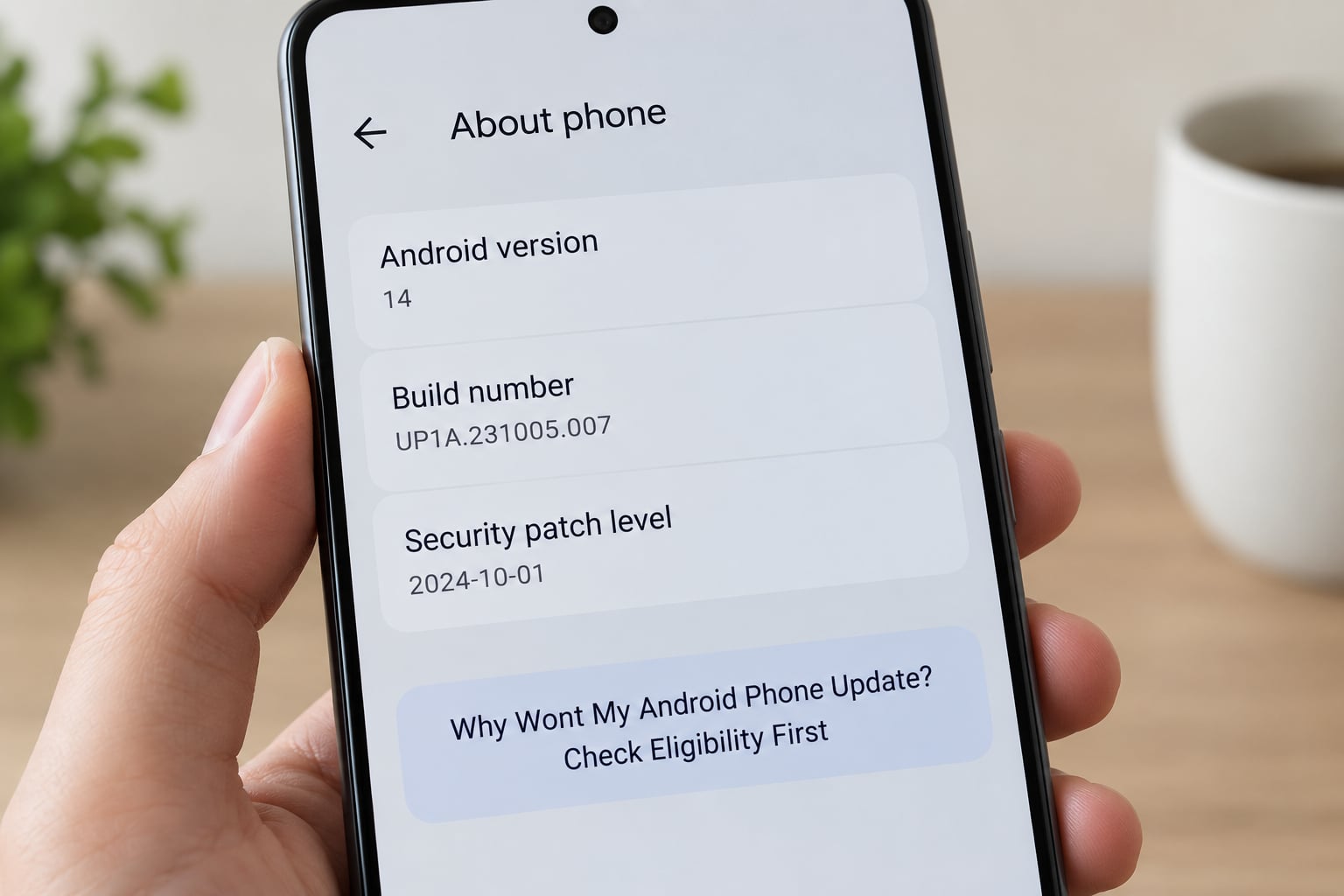
Sometimes there is nothing wrong with the phone because there is no update waiting for it. This is the answer for the many owners who report being told they are up to date on obviously old software, including a Galaxy A10e user stuck on Android 9 who insists the phone claims it is current.
Open Settings, About phone and read three lines. Android version tells you the major release, such as Android 15. Android security patch level gives you a date, and that date is the clearest signal of support status. Build number identifies the exact firmware build your manufacturer shipped. On Xiaomi, these sit under Settings, About phone, with the MIUI version or OS version line below the build number.
Two further checks matter. Carrier-locked phones often wait for the carrier to certify a release, which can add weeks or months after the manufacturer pushes it. And large updates frequently arrive in phases, so an eligible model can show nothing for a day or two while a neighbouring region or a different model variant goes first.
You will know whether you are eligible if the security patch date is recent, your build number matches the release you expected, and your carrier has not held the build back.
Clear the System Updater and Downloaded Update Files
A partial or corrupt download is a common cause of the progress bar filling to 100 percent and then the install failing, which owners on r/AndroidQuestions described happening repeatedly on a Samsung A02S. The corrupt package stays on the phone and gets retried, so the same failure repeats every night.
Start at the update screen itself. On Samsung, open Settings, About phone, Software update, then tap the three dots in the top corner and choose Reset update settings or Storage. On Xiaomi, open Settings, About phone, System update, tap the three dots, then Update settings, and look for an option to clear downloaded files. On stock Android and Pixel, the equivalent lives in Settings, System, System update, where storage options vary by build.
This deletes temporary update files only. It does not touch photos, messages or apps. If you are unsure, check that the wording says reset update settings or clear cache rather than erase data or reset phone.
Reopen the update page afterwards. If it now shows the update as available again rather than pending or failed, the partial download was the problem.
Clear the Google Play Services and Play Store Caches
Google Play services and the Play Store sit in the path between your phone and the update server, and both have a habit of getting into a stuck state. This is the fix that also solves Google Play saying waiting for Wi-Fi while you are plainly connected to Wi-Fi.
Open Settings, Apps, then See all apps. Find Google Play services, open it, tap Storage, then Clear cache. Clear cache only, never Clear data, because clearing data signs you out and resets the services that background apps depend on. Repeat the same steps for Google Play Store. On Samsung, Settings, Apps is sorted and you can search for each one by name instead.
Older Android builds with a single Play Services entry can skip the apps list: open Settings, Apps, Google Play services, Storage, Clear cache. Force stopping Google Play services from the apps list also works and takes effect on the next restart.
Reboot once you have cleared both. If downloads start moving normally afterwards, the Play services state was the cause.
Install the Update Manually From the Manufacturer
If the phone reports the correct build number for an update it is refusing to install, you can bypass the over-the-air process and flash the firmware yourself. Samsung ships a Smart Switch PC app with a firmware option, and Xiaomi provides a local update package through its own updater and support tools.
Two rules matter here. The firmware must match your exact model number and region variant, because flashing the wrong one can leave the phone unable to boot. And never flash a package downloaded from a forum or file-sharing site. Manufacturer packages are signed, and an unsigned or modified package is how phones get bricked.
With Smart Switch connected over USB, choose the firmware or emergency software recovery option, run it while the battery is above 50 percent and on mains power, and let it finish without touching the phone. Samsung users on the Galaxy S22 forum reported that switching software channels also requires a restart so the update server recognises the new channel, so restart after changing any update channel.
Success looks the same as before: the new build number and a security patch date that has moved forward.
Remove a Pending or Interrupted Update
If your phone keeps returning to the same update screen, or keeps reporting UPDATE PENDING after the update has already installed, the interrupted package is still registered. This loop is one of the most common answers to why wont my android phone update: the install finishes, then immediately announces itself pending again. The Samsung Community thread on the Galaxy S22 shows the pattern clearly.
On Samsung, clear this by opening Settings, About phone, Software update, tapping the three dots, choosing Storage, then Clear data. Repeat for any system update or setup wizard entry in the apps list. Safe Mode is the gentler diagnostic: with the phone powered off, hold Power until the menu appears, then long-press Power off and confirm Reboot to Safe mode. Install the update again in Safe Mode, then restart normally.
Several users on that thread reported the Safe Mode reinstall working, followed by a cache wipe roughly thirty minutes later. Others found neither Safe Mode nor a factory reset helped, and one Galaxy owner only got a working phone after a motherboard replacement.
You will know the pending update is gone when the notification does not reappear within a minute of a clean restart.
Perform a Safe Factory Reset
A factory reset is a diagnostic step here, not a first move. It erases everything on the phone, including photos, messages, downloaded apps and any authentication tokens for banking or work accounts. Do not run it until your backup is verified.
Back up first: turn on Google backup in Settings, Accounts, Google, Manage backup, or run Samsung Smart Switch to a PC, or copy your photo library to a computer drive. Then confirm the backup actually lists your photos and messages before continuing.
The reset path is Settings, System, Reset options, then Erase all data or Factory data reset and Erase all data. On Samsung One UI it is Settings, General management, Reset, Factory data reset. On Xiaomi, Settings, General settings, Reset, Erase all data. The phone restarts several times and takes 10 to 20 minutes before showing the setup screen.
If the update installs cleanly after a reset, an app conflict or corrupted file was the cause, and you can reinstall your apps one at a time to find it. If the same failure survives a full reset with a clean install, stop escalating on your own and move to the last step.
Use Recovery or the Manufacturer Support Service
Recovery mode can wipe the cache partition, which clears temporary system files without touching your data. On most Android phones, power the phone off, hold Power plus Volume Up together, and release Power when the logo appears. In recovery, choose Wipe cache partition or Clear cache. On stock Android the option may be hidden and reachable only through the developer options menu; on Samsung it is plainly visible.
Wipe cache does not delete your photos or apps. It removes only temporary files. Confirm you have picked the cache option rather than Data restore or the full factory reset, because those two are not the same action.
After that, contact the manufacturer. Xiaomi support, Samsung service centres and Google all run device diagnostics that can see update errors your Settings screen hides. Give them the model number, build number, security patch level and the exact error text.
Accept that some failures are hardware. Forum users report support chat and web forms returning errors while the phone would not boot past the logo, and one update loop ended only with a motherboard replacement. If your phone sits on the boot screen or the logo for more than an hour after a cache wipe, or it drops to a black screen on repeated attempts, treat it as a hardware fault and raise it under warranty or your consumer guarantees rather than running more software fixes.
Common Mistakes That Break Android Updates
Most update failures that survive the basic checks come from mistakes that are easy to avoid.
- Starting on a low battery. Android blocks installs below roughly 50 percent, and a power cut during installation leaves the phone half-updated. Plug the phone in before you start.
- Downloading on mobile data or a captive network. Both stall large OTA packages. Use home or office Wi-Fi with a password, and confirm a web page loads before you open the updater.
- Letting storage creep below the limit. The package downloads, unpack fails, and the phone is left mid-install with less room than before. Free at least 10 GB, ideally 15 GB for a major release.
- Interrupting the install. Powering off, removing the case, or letting the battery die during the restart phase corrupts the package. Once the install screen appears, put the phone down and let it finish.
- Flashing the wrong firmware. A package built for a different model or region can prevent the phone booting at all. Match the model number exactly.
- Clearing app data instead of app cache. Clearing data for Google Play services or the Play Store signs you out and resets app permissions. Clear cache only.
- Deleting system files or system apps. Anything named System, Provider, Download Manager or Setup Wizard is load-bearing. Removing one causes failures that look exactly like a broken update.
- Force restarting a healthy update. A big download can legitimately take 30 to 60 minutes, and installation with optimisation can run over an hour on a mid-range phone. Restarting early is the single most common self-inflicted loop.
When the Update Is Not Actually Available for Your Phone
Some answers to this question are simply that there is no update for your device, and forcing one is neither possible nor wise.
The model may be out of support. Manufacturers publish support windows, and once a model passes its end-of-life date it stops receiving major Android releases. It may still receive security patches for a while, then nothing. The security patch level date on the About phone screen is the fastest way to see where you stand.
The hardware may cap the ceiling. A phone that shipped with Android 10 usually cannot jump to Android 15, because the update needs newer drivers for the camera, radio and fingerprint hardware. One long-standing Galaxy A10e owner has been stuck on Android 9 with a phone that reports itself as up to date.
Your carrier may be holding the build. Manufacturers ship a release to the carrier first, and the carrier has to certify it before it reaches your phone. That wait can be weeks. Unlocked phones usually get the release earlier than locked ones.
The region or model variant may differ. Some releases roll out per country, and dual-SIM and carrier variants sometimes lag behind the base model.
It may be a phased rollout. Android updates arrive in waves. Checking Settings, About phone, System update every few days is the normal way to find out.
Downgrading is the one route that genuinely does not exist on most Android phones. One editorial competitor covers rollback, but the honest answer is that stock Android cannot install an older version over a newer one. Custom ROMs such as LineageOS or Xiaomi.eu can do it, but they unlock the bootloader, wipe the device, and remove warranty protection. For an ordinary phone owner trying to get a working update, that trade is not worth it.
Frequently Asked Questions
How can I force my Android phone to update?
Force an update by restarting the phone, confirming battery is above 50 percent with 10 GB or more free, and connecting to a password-protected Wi-Fi network. Turn off any VPN, Private DNS or Data Saver, then open Settings, System, System update and tap Check for updates. On Xiaomi use Settings, About phone, System update. If it still refuses, reset the update settings from the three-dot menu on the same screen.
What to do if an Android update is stuck?
Give a stalled update time first, since a large package can take 30 to 60 minutes to download and over an hour to install. If the progress bar has not moved for two hours, restart the phone, then clear the update cache from the three-dot menu on the software update screen. Clear the Google Play services and Play Store caches next, and try Safe Mode. Only after those steps should you consider a factory reset.
My phone says it is up to date but it clearly isn’t. What is going on?
Compare the security patch level date in Settings, About phone with what your model should be running. A patch date more than a few months old usually means the update exists but is blocked by your carrier, held for your region, or staged in a later rollout wave. If the build number matches the newest release and the patch date is recent, the phone is genuinely current for that model.
My phone keeps restarting in an update loop. How do I fix it?
Boot into Safe Mode by holding Power, long-pressing Power off, and confirming Reboot to Safe mode, then install the update again from inside Safe Mode. If it loops after a clean install, wipe the cache partition from recovery mode using Power plus Volume Up at startup. Users on the Samsung Galaxy S22 community thread reported the Safe Mode reinstall working, while others needed a factory reset or even a motherboard replacement.
Why does Google Play say waiting for Wi-Fi when I am connected?
Google Play services and the Play Store hold their own network state, which can go stale after a network change or a failed update check. Go to Settings, Apps, See all apps, open Google Play services, tap Storage and clear cache, then do the same for Google Play Store. Reboot afterwards. Turning off a VPN or setting Private DNS to Automatic also fixes this, because a proxied connection fails Play’s network check.
How do I stop a system update?
On Samsung, open Settings, About phone, Software update, tap the three dots, choose Storage, then Clear data. On stock Android, open Settings, System, System update and use the reset or storage option there. On Xiaomi, the same option sits behind Settings, About phone, System update, then the three-dot menu and Update settings. Avoid clearing app data for Play services, which signs you out of your Google account.
Conclusion
Start with the free checks in order: restart the phone, connect to stable Wi-Fi with any VPN or Private DNS switched off, then confirm battery above 50 percent and at least 10 GB free. Those four steps resolve the large majority of why wont my android phone update cases in under ten minutes.
If it still fails, check whether an update actually exists for your model by reading the build number and security patch level, then clear the update cache and the Play services caches. Beyond that, install the firmware manually, clear a pending update from Safe Mode, and only then consider a factory reset with a verified backup behind it. When a phone will not boot past the logo after all of that, it is a hardware fault, and support or a service centre is the next call.
Whatever you end up doing, do not switch automatic updates off. A phone that will not update is a security problem, not just an inconvenience.