The fastest way to extend tablet battery life is to turn on the built-in battery saver, drop screen brightness, shorten the screen timeout, restrict background app activity, and switch off the radios you are not using. Those five changes usually recover an hour or more a day on an Android tablet, and the first two do most of the work.
Nearly all of that comes from two places: the screen, which eats roughly 30-40% of the charge, and background work you never asked for. Settings changes buy you hours today. Charging habits protect whatever is left of the cell over the years, which is a separate problem and worth treating separately.
If you only do six things this week, do these:
- Turn on battery saver and switch it to trigger at 20% rather than 10%.
- Turn on adaptive brightness and stop running the screen at maximum.
- Set screen timeout to 15 or 30 seconds.
- Change rarely used apps from Unrestricted to Optimised in App battery usage.
- Switch off Bluetooth, location and mobile data when you are not using them.
- Open Battery usage again after 24 hours and see what actually moved.
Every menu path below is written for stock Android 12 and newer first, with the Xiaomi HyperOS, Samsung One UI and iPadOS wording where it differs. Find your interface and follow along.
Table of Contents
- What You Need
- Step-by-Step: How to Extend Tablet Battery Life
- 1. Check the Battery Usage report first
- 2. Cut what the display spends
- 3. Turn off connectivity you are not using
- 4. Limit background app activity
- 5. Enable battery saver to extend tablet battery life further
- 6. Use low-power settings for whatever the tablet is doing
- 7. Charge in a way that limits long-term wear
- 8. Update the tablet and reset problem apps
- 9. Know when the battery itself is the problem
- Common Mistakes
- Quick Tips for Longer Tablet Battery Life
- Frequently Asked Questions
- How much extra battery life can these Android tablet settings provide?
- Is it safe to leave a tablet charging overnight?
- What is the best battery percentage for storing a tablet?
- Why does my tablet battery drain overnight while I am not using it?
- Can battery calibration restore capacity after the battery is worn out?
- Conclusion
What You Need
Your tablet and about twenty minutes. That is genuinely it. No app, no accessory and no extra cable is required for the changes that matter most, which is why this works on a five-year-old device as well as a new one.
Two optional things make it easier to verify. A USB power meter tells you what the charger is actually pushing out. A diagnostic app such as AccuBattery, which users on the XDA forums recommend for measuring real screen-on time, lets you compare before and after instead of guessing from the battery icon.
Before you change anything, note the current percentage, the brightness level and roughly what you were doing. After the changes, compare under the same conditions. Brightness at 40% one day and 80% the next will convince you of anything you want to believe.
Step-by-Step: How to Extend Tablet Battery Life
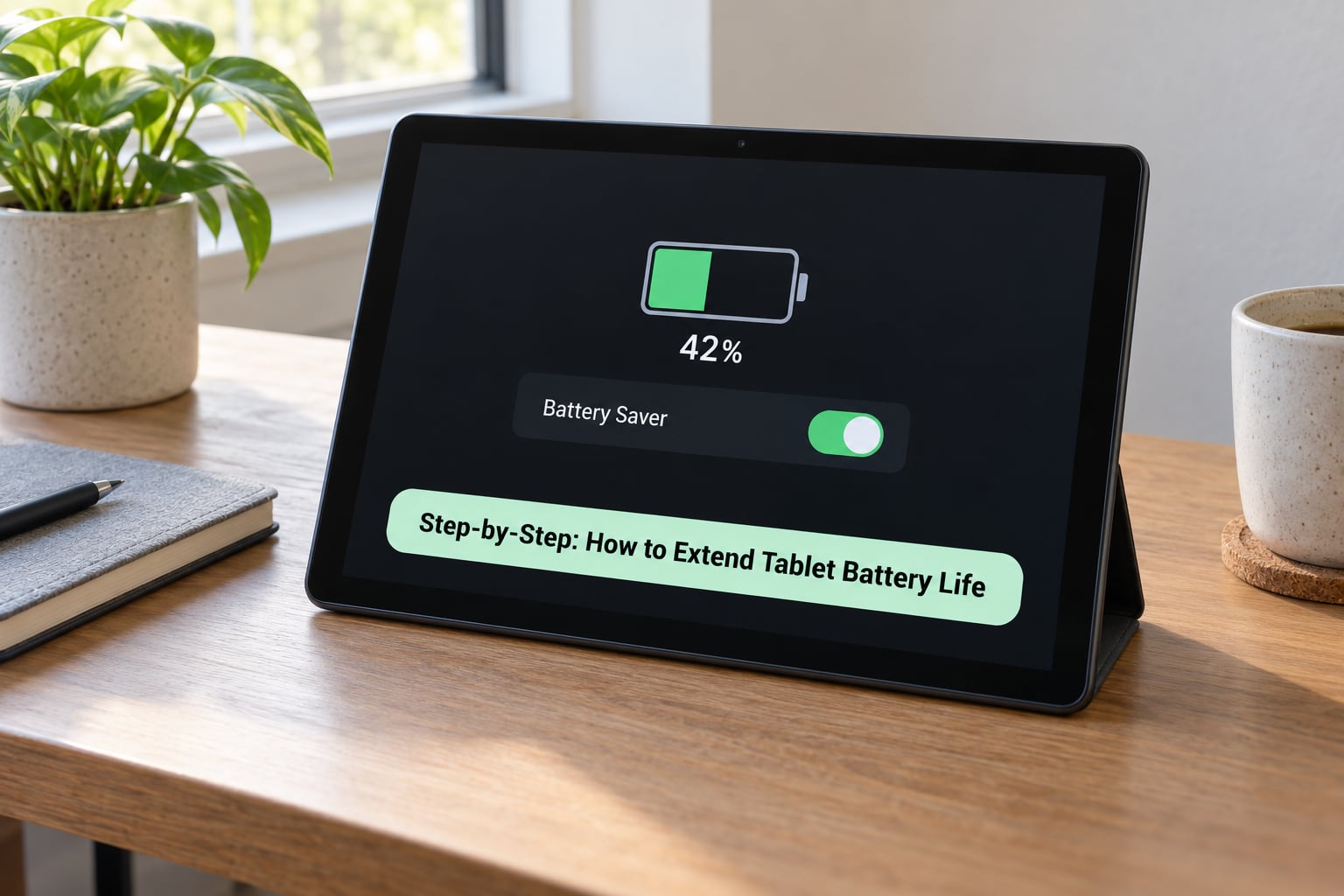
Work through these in order. The first four produce most of the improvement because they attack the screen and the apps, and together those two account for roughly half of what your battery drains.
Here is roughly where the charge goes on a typical tablet, so you can aim at the right thing:
- Display and backlight, 30-40% of typical drain. The levers are brightness, refresh rate and screen timeout.
- Processor and graphics, 15-25%. Battery saver mode and closing games do most of the work here.
- Wi-Fi, Bluetooth, mobile data and GPS, 10-20%. Quick settings toggles and location permissions.
- Background apps and sync, 10-20%. App battery usage restrictions.
- Sound, sensors, vibration and standby, 5-10%. Always-on display and notification trimming.
1. Check the Battery Usage report first
Open Settings > Battery > Battery usage. Android 12 through 16 show a ranked list with an estimated share per app over the last 24 hours and the last 7 days, and the 7-day figure is the honest one because a single heavy day distorts it.
Scroll past the hardware entries and look for one app sitting far above everything else. Force stop it and reopen it when you actually need it. If it keeps climbing, set it to Optimised under Battery > App battery usage, and change its location permission from Allow all the time to Allow only while using the app.
Xiaomi HyperOS keeps the same list under Settings > Battery > Battery usage. Samsung One UI shows Battery > Battery usage with a Sleeping apps entry underneath it. Members of the OnePlus community have a shortcut for triaging: if Google Services shows more than roughly 10% of the total, that is where they start looking.
2. Cut what the display spends
The screen is the largest single drain on any tablet, and the figure climbs steeply with brightness. Lower it to what you can comfortably read, then turn on Settings > Display > Adaptive brightness so the panel adjusts to the room instead of sitting at maximum all day.
Dark mode is worth less than most guides claim. It saves something around 20% on an OLED panel and almost nothing on an LCD one, but it costs you nothing to leave on, so leave it on.
Next, set Settings > Display > Screen timeout to 15 or 30 seconds. Turn off Always-on display if your model has it, and use a static wallpaper rather than a live one, because animated wallpapers keep redrawing the panel behind the home screen.
If you need extra hours on a single charge, drop the refresh rate from 120Hz to 60Hz under Settings > Display > Motion smoothness or Refresh rate. Scrolling gets slightly less smooth and everything else looks identical.
3. Turn off connectivity you are not using
Wi-Fi, Bluetooth, GPS and mobile data each draw power continuously while they search for something to do. Wi-Fi in a weak-signal area is the worst of the lot, because the tablet keeps cranking up transmission strength to hold onto a connection that barely works.
Pull down the quick settings panel and switch off Bluetooth, location and mobile data rather than digging through menus. On a train or a plane, airplane mode with Wi-Fi switched back on inside it is the pattern that works best: the cell radio stops hunting for towers while downloads keep running.
For location, set Settings > Location > Use location only while using the app instead of Always. Leave Bluetooth alone if you use a stylus, a keyboard case or wireless earbuds, and never disable anything involved in emergency calling.
4. Limit background app activity
Apps you have not opened in a week are still allowed to sync, check for messages and run location updates. On a tablet with a few dozen apps installed, that quietly adds up to a meaningful slice of the day.
Go to Settings > Battery > App battery usage and move the apps you rarely use from Unrestricted to Optimised, which pauses their background work. Samsung One UI calls the same idea Sleeping apps under the Battery menu. Xiaomi HyperOS has App battery saver in the same section.
Close the apps you were actually using with a swipe instead of leaving them minimised, because a minimised app keeps its state and often keeps its sensors alive. Keep notifications switched on for the apps that matter; trimming everything helps standby drain a little and breaks the apps you rely on.
5. Enable battery saver to extend tablet battery life further
Battery Saver throttles background work, limits vibration and lowers processor performance. It is the single biggest switch you can flip, and the price is a little smoothness.
On stock Android, find it at Settings > Battery > Battery Saver, or Battery > Adaptive Battery on Android 12 and newer, which puts rarely used apps into deep sleep automatically. Xiaomi HyperOS uses Settings > Battery > Battery saver, with separate options for dimming and limiting background activity. Samsung One UI puts it under Battery > Battery mode next to Sleeping apps and Protect battery.
Leave it on Adaptive rather than the aggressive mode, and move the trigger from 10% up to 20% so it catches you before you are stranded. Adaptive mode caps background sync and drops some animations, and the everyday cost is usually a slightly less fluid scroll.
6. Use low-power settings for whatever the tablet is doing
Different tasks have very different costs, and streaming video at full brightness over mobile data is close to the worst combination a tablet can be put in. It is also the easiest to fix.
- Reading: 60Hz refresh, warm low brightness, location set to use only while in use.
- Video: download instead of streaming, switch to Wi-Fi, and close picture-in-picture if your model has it.
- Gaming: battery saver on, brightness below half, airplane mode if the game is already installed.
- Navigation: set location accuracy to Low while you are moving, since high accuracy wakes the GPS continuously.
- Video calls: camera and microphone permissions only while in use, and a wired headset over a Bluetooth one.
- Typing on a keyboard case: leave Bluetooth on but turn off auto-sync for anything you are not actively pushing.
7. Charge in a way that limits long-term wear
Charging habits cannot bring back a worn cell, but they slow the damage. Lithium-ion batteries dislike three things above all: heat, sitting at a high state of charge for long stretches, and repeated full discharges.
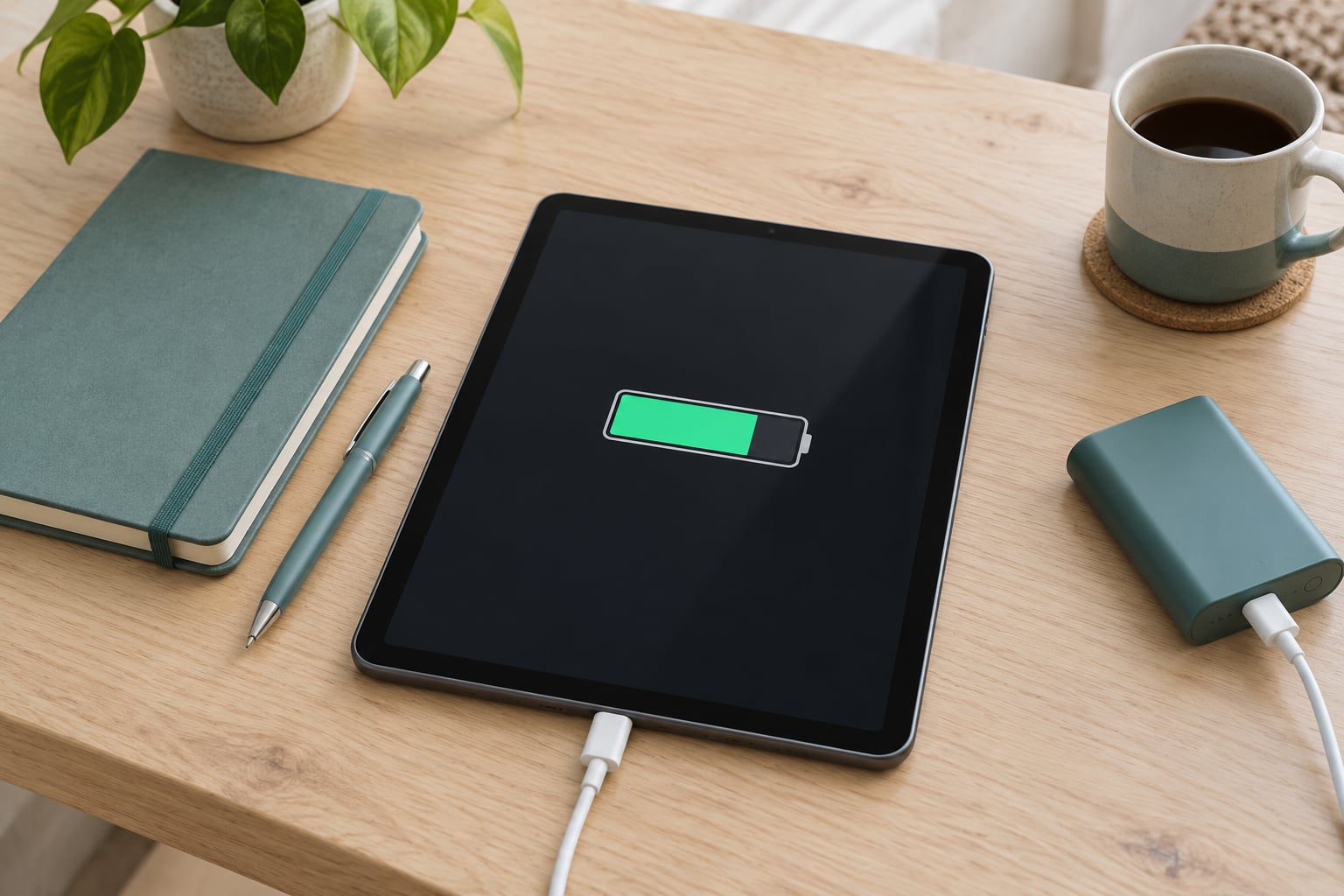
Top up somewhere around 20-30% rather than running to zero. Where the setting exists, use it: Samsung calls it Protect battery, Xiaomi has charging limits in the Battery section, and iPads have battery health management that holds the tablet back at 80%. If the tablet spends hours plugged in, one of those limits is the single most useful thing you can turn on.
Use the charger the tablet shipped with, or one that meets the manufacturer specification, and charge on a cool, ventilated surface. A case that traps heat while charging is worth taking off. Leave the tablet out of a hot car in summer, and stop charging it if it feels hot rather than pushing through.
8. Update the tablet and reset problem apps
System updates regularly carry battery fixes, and a recently updated app is one of the most common causes of sudden drain. Install any pending security and system updates, then restart the tablet so the background work finishes its indexing pass.
If the drain started right after an update, clear that app’s cache first: Settings > Apps > the app > Storage > Clear cache. Skip Clear storage unless you are ready to sign back into everything, because it takes the app back to a fresh install without the update that caused the problem.
If the abuse continues, uninstall and reinstall the app, and check whether several background apps are syncing the same account. On OnePlus community threads, cases of doubled drain frequently trace back to Google Services rather than one obvious culprit, so look at the whole list before you pick a victim.
A factory reset is the last step, not the first one. It only fixes a genuinely corrupted system service, and it wipes everything on the tablet, so back it up before you consider it.
9. Know when the battery itself is the problem
Settings changes only fix what software is doing. Once the cell has worn out, nothing gives the old runtime back, and the honest move is to stop hunting through menus.
Warning signs look like this: the tablet shutting down at 30% or 40%, a screen that ripples or lifts in the middle, a back cover that no longer sits flush, or runtime that collapses again a few weeks after a replacement. Some models report cycle count and maximum capacity in a hidden service menu or a hardware report, and those numbers beat any guesswork.
A lithium-ion tablet cell usually gets 300-500 charge cycles before it needs attention, and a few years of daily partial charging lands inside that range. Once you are there, an authorised service centre replacing the cell costs far less than a new tablet. Do not open the tablet yourself, and do not fit an aftermarket pack without matching voltage, capacity and connector, because a mismatch either refuses to charge or runs hot under load.
Common Mistakes
Most bad advice on this topic was written for a different device, or written a decade ago. Here is what to stop doing, and the fix for each.
Leaving brightness at maximum. The backlight is the biggest single drain on the device. Set adaptive brightness and roughly half brightness indoors.
Skipping Battery usage and blaming the battery. Forum threads are full of people ready to pay for a new cell while one app quietly syncs in the background. Read the ranked list before you spend anything.
Allowing location access to everything. Continuous GPS is expensive and it never fully sleeps. Set it to allow only while using the app, and drop accuracy to Low when you are just navigating.
Charging somewhere warm. Heat speeds up capacity loss more than charge level does. Cool surface, case off, and never on a dashboard or a bed.
Draining to 0% on purpose. The occasional full discharge is harmless. Doing it every other day is one of the fastest ways to shorten cell life, so top up around 20-30% instead.
Believing calibration fixes a worn battery. Cycling a cell from full to empty does not restore capacity, it just spends more cycles. A worn cell gets replaced, never recalibrated.
Installing battery-saver apps that kill your apps. Auto-killers fight the system and break push notifications on the apps you actually use. The built-in saver plus a diagnostic app is the better combination.
Buying an aftermarket battery without matching specs. Voltage and connector mismatch causes charging failures at best and overheating at worst. Use an authorised service.
Quick Tips for Longer Tablet Battery Life
- Carry a power bank and keep it at partial charge. A 10,000mAh pack is enough to top up most tablets two or three times.
- Use airplane mode on trains, buses and flights, where the cell radio hunts for towers in a dead zone and costs you the most.
- Keep adaptive brightness on rather than setting brightness by eye every morning.
- Re-open Battery usage two days after any system update, because post-update drain is common and usually settles once indexing finishes.
- Drop to 60Hz on days you know you will be away from a charger.
- Stop charging if the tablet feels warm, and let it cool before putting the case back on.
Frequently Asked Questions
How much extra battery life can these Android tablet settings provide?
On a tablet that has drifted into bad habits, expect 20-40% more screen-on time. Lower brightness, 60Hz instead of 120Hz, restricted background apps and switched-off radios often add two to four hours to a working day. A tablet that already behaves well gains much less. Measure before and after under the same brightness and workload, because a brightness change alone can fake an improvement.
Is it safe to leave a tablet charging overnight?
Usually yes, because modern tablets stop drawing meaningful current once the cell reaches full, so overcharging is not the real risk. Overnight charging raises two other concerns: heat, and time spent sitting at 100%. If your model offers a charge limit or battery protection mode, set it to 80% and leave the tablet somewhere ventilated with the case off. Never charge a swollen battery.
What is the best battery percentage for storing a tablet?
Around 40-60% is the sweet spot for a tablet sitting unused for weeks or months. Stored near full, a lithium-ion cell ages faster than it should. Stored empty, it can fall into a deep discharge and refuse to charge at all. If you are shelving the tablet for a while, check it every couple of months and top it back into that range before putting it away again.
Why does my tablet battery drain overnight while I am not using it?
Something is still working with the screen off: apps syncing in the background, Wi-Fi and cellular radios holding onto a connection, location services running, or an always-on display waking the panel. A healthy tablet loses a few percent overnight. Losing 20-25% means something is badly misbehaving, and a recently installed system update is the usual suspect. Battery usage over 24 hours will name the culprit.
Can battery calibration restore capacity after the battery is worn out?
No. Calibration apps and full-charge-then-empty routines only adjust the percentage estimate the software displays. Real capacity that has been lost cannot come back that way, and repeating the cycle only burns more charge cycles. If runtime has collapsed, check the battery health or cycle count where your model reports it, then have an authorised service centre replace the cell.
Conclusion
Start at the beginning: open Battery usage, find the app at the top of the list, restrict its background activity, and turn battery saver on at a 20% trigger. Then lower brightness and shorten the screen timeout, because the display is where most of the drain lives.
Give it two full days of normal use, then compare against the numbers you noted at the start under the same brightness and the same workload. If the improvement is real, keep the settings and move on to charging habits. If it is not, the answer is in step nine, not in another menu.