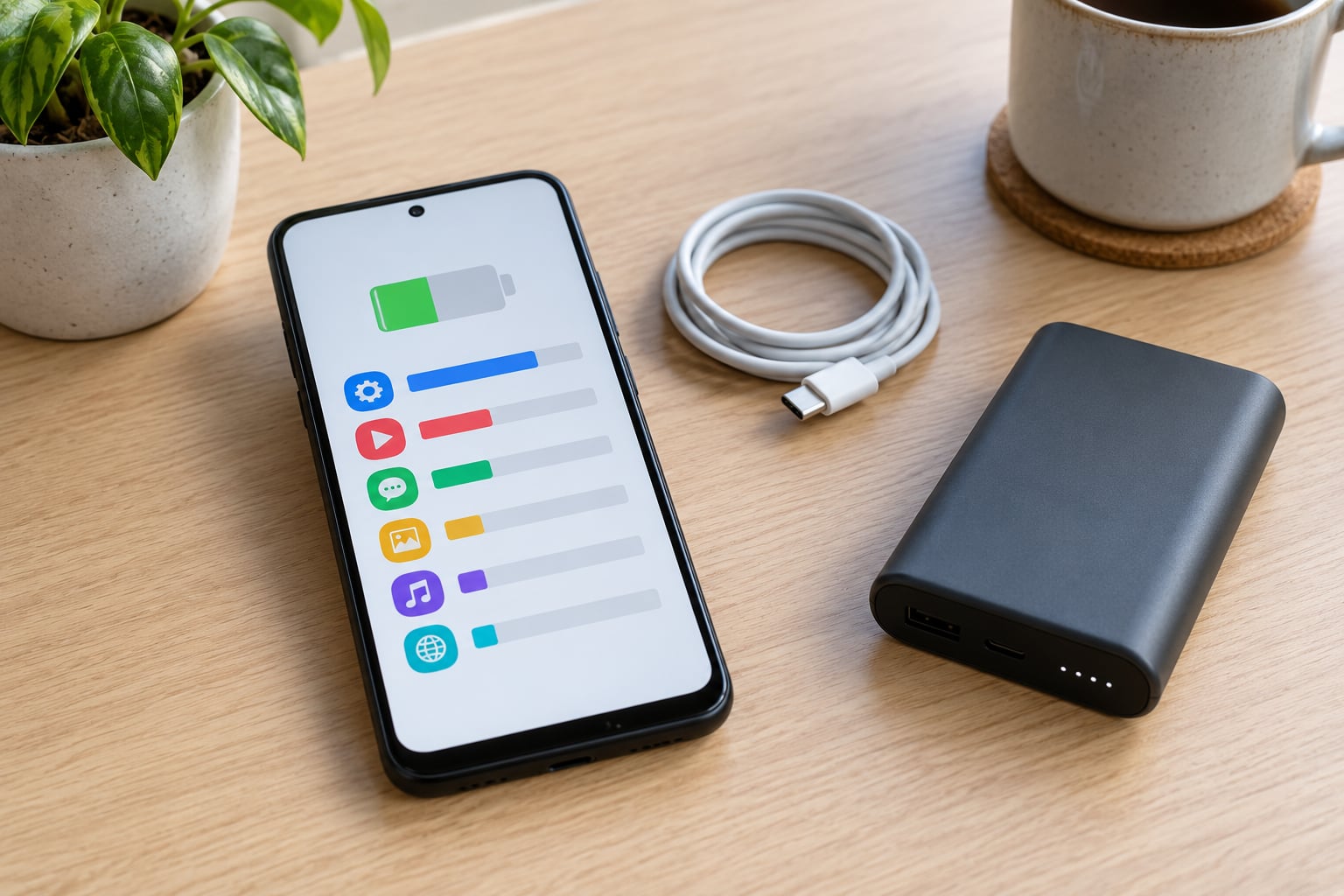
If you are wondering why does my android phone battery drain so fast, the answer is nearly always one of five things: apps syncing or holding the phone awake in the background, work the system does after a software update, heat, the modem hunting for a weak signal, or a battery cell that has worn out. Open Settings and check the battery usage screen first, because it tells you which of the five you are dealing with in about ten seconds.
Every fix below names its exact menu path. Menu labels shift a little between manufacturers and Android versions, so where a path differs on Pixel, Samsung One UI or Xiaomi HyperOS, I have said so instead of pretending one layout fits all three.
Last checked for 2026 against current Android phone behaviour on Pixel, Galaxy and Xiaomi devices.
Table of Contents
- What You Need
- Step-by-Step: How to Find and Fix Fast Battery Drain
- 1. Check Battery Usage for the App Draining Your Phone
- 2. Restart the Phone and Look for a Software Update
- 3. Limit Apps Running in the Background
- 4. Check Battery Saver, Adaptive Battery, and App Limits
- 5. Review Location, Camera, Bluetooth, and Other High-Use Features
- 6. Test Wi-Fi, Mobile Signal, and the Network
- 7. Check Storage, Syncing, and Stalled Apps
- 8. Test the Charging Cable, Charger, and Battery Health
- Common Mistakes That Make Battery Drain Worse
- Frequently Asked Questions
- Why does my Android phone lose battery overnight while I am not using it?
- Is fast battery drain right after an Android update normal?
- Why does my battery percentage jump from 50 percent to 20 percent at once?
- Which apps drain Android battery the most in the background?
- How do I know if my Android battery needs replacing?
- Conclusion
What You Need
You need your Android phone, the charger and cable that came with it or a known-good pair, and about ten minutes for the first checks. A PIN you can type in is handy too, because one of the later steps asks you to restart into safe mode.
Charge the phone above 30 percent before you start. Several of the diagnostic steps involve a restart, and you do not want a low battery to distort the percentages you are reading.
- An Android phone running a recent Android version
- The charger and cable you use every day, plus a second known-good pair if you have one
- Ten minutes for the first checks, another twenty if the culprit is not obvious
- Access to Settings, and your screen lock PIN for the safe mode test
One honest warning: some drains are temporary, some are a failing battery. If you follow the order below and nothing changes, the problem is more likely hardware than software, and I will tell you where to stop troubleshooting.
Step-by-Step: How to Find and Fix Fast Battery Drain
Work through these in order. The early steps cost nothing and are reversible; the later ones involve settings you will have to undo. Before you change anything, read the symptom table below, because it may point you at the right step immediately.
| Symptom | Most likely cause | First thing to try |
|---|---|---|
| Loses 20 to 30 percent overnight while lying on a table | Background wake-ups, weak signal, or a worn cell | Restart, then read battery usage in the morning |
| Fine all morning, dead by mid-afternoon | One app sitting at the top of battery usage | Open battery usage and split active time from background time |
| Changed overnight, right after a system update | Re-indexing and post-update optimisation | Wait 24 to 48 hours before changing settings |
| Hot to the touch while sitting idle | An app stuck in a loop, or cell wear | Run the safe mode test in step 4 |
| Only drains on 5G, or in the car | Modem searching for signal | Airplane mode with Wi-Fi on, or lock the network to LTE |
| Shuts down at 30 percent or dies with charge left | Worn battery, charge gauge out of step with the cell | Check cycle count, then book a battery service |
1. Check Battery Usage for the App Draining Your Phone
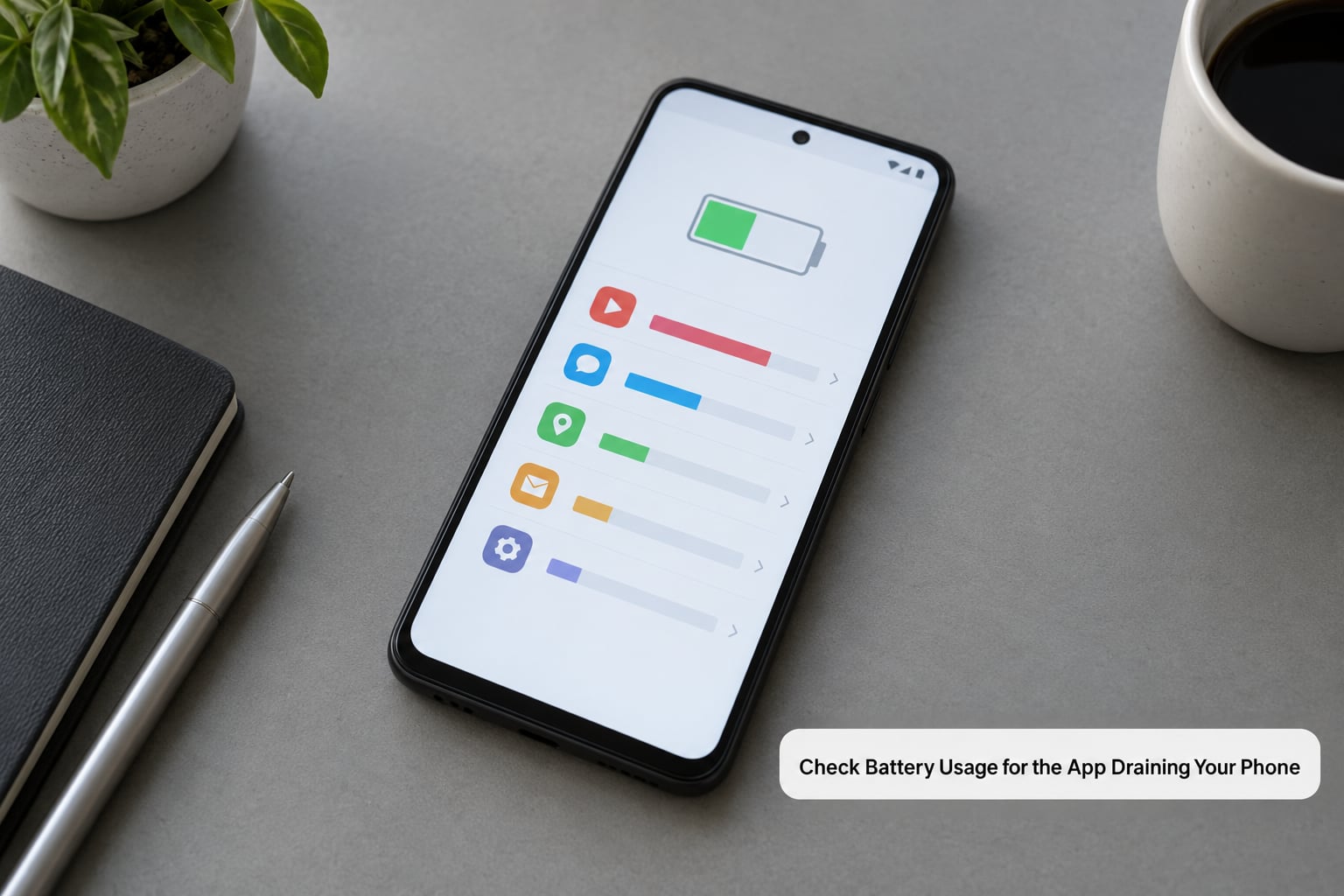
This is the step that saves everyone time. On most Android phones, open Settings, tap Battery, then tap Battery usage. On a Galaxy, the same screen sits under Settings, Device Care, Battery, then Battery usage. On Xiaomi and Redmi phones it is Settings, Battery, Battery usage.
The list shows which apps and system components have used the most charge since your last full charge. Tap the three-dot menu at the top right and choose Show full device usage to see how each app splits between active time and background time. That single toggle is the most useful thing on this screen.
Here is how to read it. An app using 30 percent of your battery with 1 percent screen-on time is a background offender. An app using 15 percent with 12 percent screen-on time is just an app you used a lot. You are looking for a high percentage with almost no active time next to it.
Close the app properly from the recent apps screen, then update it from the Play Store if an update is waiting. If the app is non-essential, set its battery use to Restricted rather than forcing it to stop.
Do not force stop system components. Android System WebView, Google Play services, the system UI, and anything tied to calls, notifications or accessibility can misbehave badly when blocked, and the fix can be harder than the original drain.
How you know it worked: check the same screen the next morning. The app you restricted should have dropped out of the top three, and your overnight loss should be a few percent rather than twenty.
2. Restart the Phone and Look for a Software Update
A restart clears stuck processes, and readers across Android forums repeatedly report that a plain restart fixes drain that started overnight with no other explanation. Hold the power button, tap Restart, and leave it alone for a couple of minutes.
Then check for a system update. On Pixel it is Settings, About phone, System update. On Samsung it is Settings, Device Care, System updates. Install it with the phone plugged in and with a decent amount of free storage, then let the phone sit for a while afterwards.
How you know it worked: after a restart, a phone that was dropping 30 percent overnight should settle to a few percent. If the drain came back within a day or two of an update, look again at the battery usage list, because the update has finished optimising and a real culprit is showing itself.
3. Limit Apps Running in the Background
Start with the recent apps screen and swipe away anything you are not using. This clears up apps that are actively drawing attention, though on many phones it does not stop background work by itself.
For the apps that matter, open Settings, Apps, See all apps, tap the app, then Battery. On Android 12 and later you get three choices: Unrestricted, Optimized and Restricted. Optimized is the sensible middle setting; Restricted is for apps you genuinely rarely open, such as an old banking app you check twice a month.
On Samsung, the same controls are split across Battery, Background usage limits, which is a Never slept, Deep sleep and Never allowed list, and Battery, Sleeping apps. A phone that is fine during the day and dead by dinner is often one app sitting in Never slept.
Leave background access alone for calls and messaging, navigation and location sharing, Bluetooth accessories and watches, VPNs, accessibility services and your backup app. Restricting those causes missed notifications and broken connections, which is worse than the drain you started with.
How you know it worked: restrict one suspect app at a time and give it a day. Changing twelve settings at once tells you nothing about which one mattered.
4. Check Battery Saver, Adaptive Battery, and App Limits
Battery Saver lives at Settings, Battery, Battery Saver, and it limits background activity, reduces brightness and trims some visual effects. Adaptive Battery, on the same screen, learns which apps you rarely open and puts them into App Standby buckets so the system throttles them.
Turn Adaptive Battery on and leave it there. It costs you nothing in most cases and it is the setting Google designed for exactly this problem. Use Battery Saver manually when you know you are away from a charger, and switch on Extreme Battery Saver only when you genuinely need the phone to last until tomorrow.
Xiaomi and Redmi users should look at two more things. In Settings, Apps, Autostart, grant autostart to your chat and messaging apps so the system does not kill them, and under Battery settings turn off the aggressive process killer. When MIUI or HyperOS kills an app and then restarts it minutes later, the phone repeats that cycle all night and battery usage shows no single culprit. That loop is one of the most reported complaints on Xiaomi user forums, and disabling the process killer plus granting autostart is the repeated fix.
To test whether a restriction is causing the drain rather than curing it, set one app back to Unrestricted for a day. Some apps are written badly enough that restricting them makes the system poll them more often instead of less.
How you know it worked: overnight loss drops and the phone does not feel sluggish when you open an app in the morning.
5. Review Location, Camera, Bluetooth, and Other High-Use Features
Location services are the sensor most often left switched on with no user benefit. Open Settings, Location, Location services, and set it to off when you are not navigating. Then go through individual apps: Settings, Apps, See all apps, tap the app, Permissions, Location, and pick Allow only while using the app for anything that is not navigation.
Bluetooth, NFC and the personal hotspot are all cheap to turn off when unused. Camera permissions granted on an always basis let the app wake the processor for the camera without you opening it, so switch that to while using the app too.
On current Android versions, check Settings, Network and internet, Internet, then the three-dot menu for Network scan always available. Nearby device scanning for Bluetooth accessories is worth looking at as well if you never use tags or proximity pairing.
Screen settings are the other half of this step. Turn on adaptive brightness and dark theme, drop the screen timeout to the shortest gap you can live with, and check whether your display is set to the highest refresh rate. If you do not need the smoothness, the 60Hz or Motion Smoothness setting is a measurable saving.
How you know it worked: your screen-on time in battery usage drops relative to the percentage each app used. That ratio is the clearest single sign that the display is the problem.
6. Test Wi-Fi, Mobile Signal, and the Network
A phone in a weak signal area works harder to hold the connection, and that effort costs real battery. Switch on airplane mode, leave Wi-Fi on, and use the phone for a few hours. If the drain slows noticeably, the modem was the problem, not your apps.
If it does, the fix depends on where you are. Locking the network to 4G saves battery on phones where 5G coverage is patchy, and it is the change people on Pixel and Galaxy phones report most often after long car journeys. In Android Central forum threads, airplane mode with Wi-Fi left on cooled down a phone that was running hot for no other clear reason.
One Pixel owner traced unexplained idle drain on a 7a to adaptive connectivity, the feature that quietly switches between Wi-Fi and mobile data to save power. Turning it off in Settings, Internet stopped it. So before you blame hardware, check whether the phone is swapping between connections all night.
Restart your router and compare again. As a last resort, reset Wi-Fi, mobile and Bluetooth network settings under Settings, System, Reset options, but expect saved networks and Bluetooth pairings to need setting up again.
7. Check Storage, Syncing, and Stalled Apps
A phone that is nearly full works harder on everything. Check free space under Settings, About phone, Storage, and clear out old videos and downloads first if you are under about 15 percent free.
Then look at what syncs. Photo backup, cloud drives, chat apps with continuous backup enabled and podcast apps can retry a failed upload all night without telling you. Open each app’s battery entry and see whether one shows a large percentage with almost no active time.
For a suspect app, open Settings, Apps, See all apps, tap the app, Storage, then Clear cache. This is safe and it clears temporary files only. Clearing an app’s storage or data is different, because it can sign you out and remove downloaded media, so read what you are deleting first.
Google app drain is a common one, and clearing its cache has resolved it for several owners posting in Android support communities. Some apps that repeatedly fail to sync can be spotted by opening them, watching for a spinning or error message, and then clearing their cache or disabling their background sync until you need it.
How you know it worked: the app stops retrying, and its share of battery usage drops from double digits to almost nothing.
8. Test the Charging Cable, Charger, and Battery Health
Swap in a second cable and charger that you know work well, ideally the ones that came with the phone or a reputable pair. Then charge overnight and watch what happens. A worn or unbranded adapter runs hot, supplies unstable voltage, and can make a phone drain while it is plugged in.
If your phone gets hot enough to warn you, stop using that charger. Heat shortens battery life faster than anything else you are likely to do to the phone, and Android throttles performance when a device runs hot, which makes everything feel slower and drains more charge to finish the same work.
To check the battery itself, look for a battery information screen. Samsung phones show battery status and capacity under Settings, Battery, Battery information, and Pixel phones show charge cycle count under Settings, About phone, Battery information. Xiaomi devices show a battery health percentage and a capacity status code in the Battery section of Settings.
For a deeper look, the engineering code *#9908# opens a battery statistics dump on many Android phones, and *#*#4636#*#* opens usage statistics where you can see how much time apps held the phone awake. Neither is officially documented, they differ between devices, and they are read-only, so they are for looking rather than changing anything.
Book a professional service, and stop troubleshooting settings, if your phone shuts down at 20 or 30 percent, dies suddenly with charge left on screen, swells or lifts the screen, or drops from full to half in minutes. Those are cell faults, not software faults, and no setting will fix them.
Common Mistakes That Make Battery Drain Worse
Some fixes create the problem they were meant to solve. These are the mistakes I see most often.
- Leaving location switched on. A single navigation or delivery app left on always-useful location can hold GPS active for hours. Set it to while using the app.
- Restricting an essential app. Blocked notifications and forced restarts cost more than the background sync you saved. Use Optimized before you reach for Restricted.
- Running an update with almost no free storage. A failed or cramped update can leave the system re-optimising for days. Clear space first, then install.
- Ignoring heat. Charging under a pillow, in a hot car, or while gaming drains fast and ages the cell. Take the case off while charging.
- Installing cleaner and booster apps. Most of them add a background process rather than removing one, and several are the reason the drain started.
- Leaving old apps installed. Unused apps still receive notifications and sync attempts unless restricted. Uninstall the ones you never open.
- Sitting at 100 percent all day. Charging to full and staying there keeps the cell at maximum voltage. Most phones can cap charging with adaptive or optimised charging built in.
- Judging drain percentages immediately after an update. Post-update work runs for a day or two. Wait before you change settings you may have to change back.
For the longer term, a monthly look at the battery usage screen catches problems while they are still small. Keep the phone away from sustained heat, use the charger it was designed for, and if you want a hard limit on overnight charging, most current Android phones can stop topping up around 80 percent when you turn on optimised or adaptive charging.
Frequently Asked Questions
Why does my Android phone lose battery overnight while I am not using it?
A few percent overnight is normal, because the system still keeps the modem listening, syncs mail and backs up photos. Losing 20 percent or more points to background wake-ups, a weak signal making the modem work harder, or a worn battery. Restart the phone, read the battery usage screen the next morning, and check whether the top app had almost no active time next to its percentage.
Is fast battery drain right after an Android update normal?
Usually yes. After a major version update, Android re-indexes your apps and photos, rebuilds its app optimisation database and re-downloads things it lost, all of which cost battery for a while. Wait 24 to 48 hours before changing any settings, then check battery usage again. If the drain is still there once that window has passed, something else is responsible.
Why does my battery percentage jump from 50 percent to 20 percent at once?
The battery gauge estimates charge from the voltage it can read, and large jumps usually mean the cell voltage is sagging under load rather than the battery emptying evenly. It is common on a worn battery, but software faults and a failed app can look similar. Watch whether the jumps happen while gaming, in heat, or with heavy signal use. Heat-related and load-related jumps point at the cell or the charger.
Which apps drain Android battery the most in the background?
The same names come up again and again in Android user forums: social feeds such as Facebook and Instagram, navigation and delivery apps holding GPS, wearable and accessory companion apps, chat apps syncing media, and the Google app itself handling voice detection and search. Any of them can top the list on your phone, so read your own usage screen rather than trusting a generic list.
How do I know if my Android battery needs replacing?
Look for a phone that shuts down well above zero percent, dies suddenly with charge still showing, swells, or drops from full to half within minutes. Check the charge cycle count under Settings, About phone, Battery information on Pixel, or the Battery information screen on Samsung. Once a cell no longer holds a realistic share of its original capacity, a replacement service is cheaper than fighting settings.
Conclusion
Start with the battery usage screen, then restart the phone and check for a system update. Those three steps resolve more cases of android battery drain than anything else, and they take under ten minutes between them.
After that, restrict the one app with high usage and almost no active time, switch off location and unused connectivity, and test airplane mode with Wi-Fi to rule out the modem. If your Xiaomi phone is the one draining, turn off the process killer and grant autostart to your chat apps.
If the phone still drains unusually quickly, runs hot, or shuts down with charge left on the display, stop changing settings and contact the manufacturer or a qualified repair service. That is a hardware conversation, and no menu will fix it.