You can hide apps on Android without rooting your phone. Almost every phone hides an app in under a minute, either through a Hide apps switch in the launcher settings or by moving the app into a locked folder that asks for a PIN before it opens.
The difference between the two matters. Hiding just takes the icon off your home screen, while a secure folder or Private Space actually keeps the app’s data behind a password. Start with the built-in option your phone maker already gave you, and only install a different launcher if you want finer control.
Table of Contents
- What You Need
- Step-by-Step
- Use Built-In App Hiding or Secure Folders
- Hide Apps With a Third-Party Launcher
- Verify the Apps Are Hidden
- Common Mistakes
- Frequently Asked Questions
- Do I need to root my phone to hide apps?
- How do I find hidden apps on my Android phone?
- Is hiding an app the same as uninstalling it?
- Can I hide an app with a password on Android?
- How do I hide the YouTube app on Android?
- Conclusion
What You Need
Before you start, check that your phone has a screen lock set up. A PIN, pattern, password or fingerprint makes the secure folder and Private Space features work, and a phone with no lock screen is an open door to everything inside them.
You need four things:
- The phone itself, unlocked and in your hands.
- An existing screen lock — Settings, Security, Screen lock type on most models.
- Your Google account signed in, since Secure Folder, Second Space and Private Space all live behind it.
- Optional: a third-party launcher from the Play Store, if your maker’s hidden list is too limited.
Menu names differ by manufacturer and by Android version. Samsung calls its settings app Galaxy Store and One UI, Xiaomi calls it MIUI or HyperOS, and the path to the same switch moves around between releases. If a label in this guide does not match your phone, look for the closest equivalent rather than assuming the feature is missing.
Step-by-Step
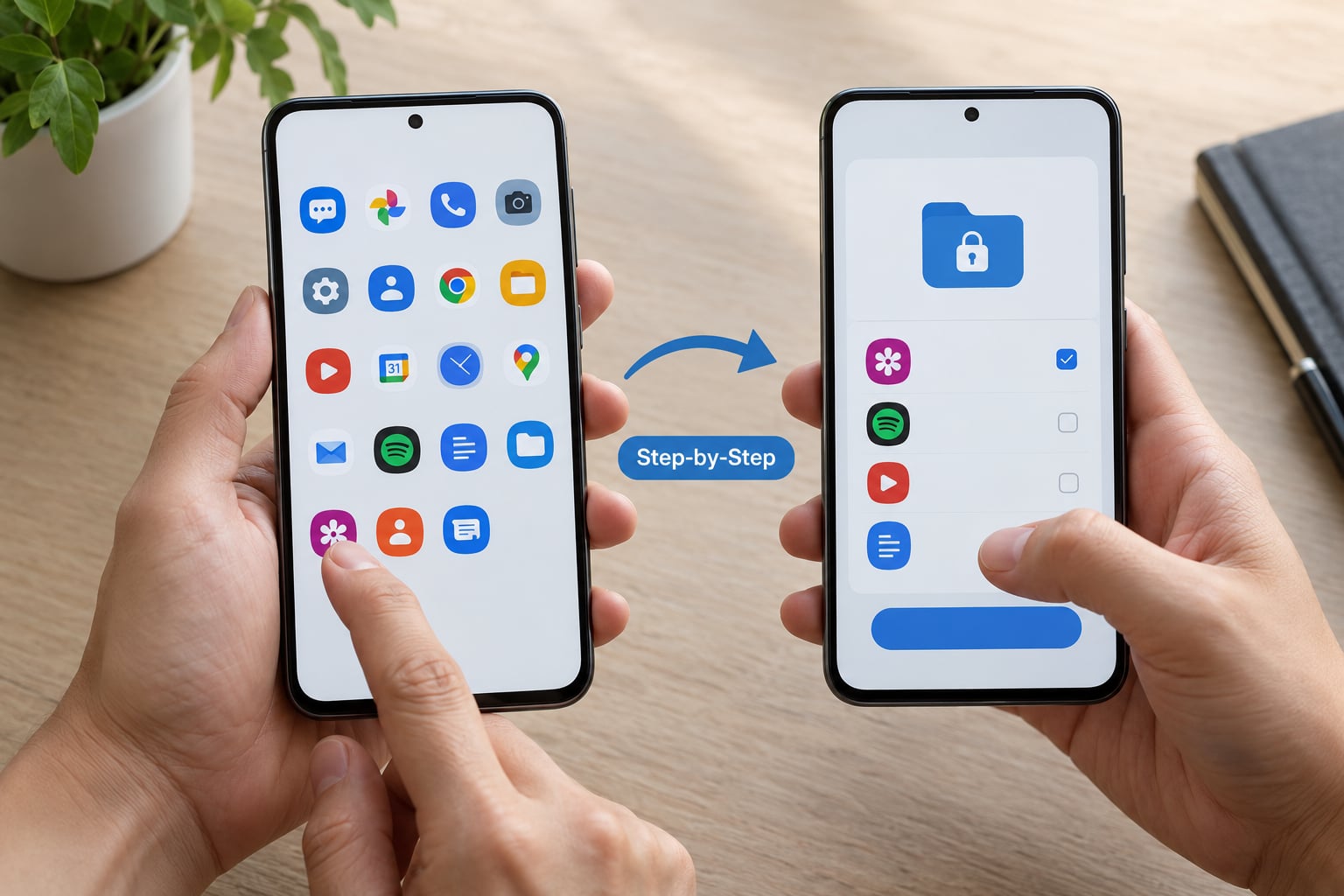
Work down this list in order and stop as soon as one method gives you what you need.
Use Built-In App Hiding or Secure Folders
Every phone in this group has a native option, and it is the one to try first because nothing extra gets installed.
Samsung
- Swipe up on the home screen to open the app drawer.
- Tap the three-dot icon in the top corner, then Hide apps.
- Tap each app you want to remove, then tick the checkmark to confirm.
- The icons disappear immediately. To bring them back, repeat the same path and untick them.
Xiaomi and Redmi
- Open Settings and go to Apps.
- Tap Manage apps, then the three-dot menu in the corner.
- Choose Hide apps and select the ones you want to conceal.
- You can also set an App lock under Settings, Privacy, App lock, which asks for a password before an app opens.
OnePlus and Oppo
- Open Settings, then Special features.
- Tap Hidden space and turn it on.
- Set up a separate password for that space — OnePlus will not accept your main screen lock.
- Swipe right from the home screen, or tap the plus icon on your wallpaper, to reach the hidden space.
Google Pixel
- Pixel stock has no native hide list in the launcher, so open Settings, Apps and choose See all apps.
- Tap the three-dot menu and select Uninstall, which removes the icon without uninstalling anything.
- Reinstall it later from the Play Store or from Settings, Apps, See all apps, Installed apps, where system apps that were only disabled still appear.
Nothing and Motorola
- Nothing phones run a near-stock launcher, so use the same app info route as a Pixel.
- On recent Motorola models, open Settings, Apps and tap the three-dot menu for Hide apps.
- On older Moto software, hiding is only available through a secure folder in the Moto Secure app.
For the strongest protection, use a real isolated space. Samsung Secure Folder, Xiaomi Second Space, OnePlus Hidden Space and Android 15 Private Space all keep app data in a separate profile, and each one asks for its own password before showing anything.
Hide Apps With a Third-Party Launcher
A launcher replaces the app drawer and home screen entirely, so it can hide an app from both and keep it out of search as well. Microsoft Launcher, Nova Launcher and Niagara Launcher all do this from their own settings screens.
The process is the same across them:
- Install the launcher from the Google Play Store.
- Open it and let it set itself as the default home app when Android asks.
- Go to the launcher’s settings and find the hidden apps or Draw apps to hide option.
- Tap each app to add it, then return to the home screen and swipe up to open the drawer.
You can test the result without deleting anything. Pull down search, type the app name, and if it still appears, tap it and choose Remove from home screen instead. Give the launcher a week before you trust it, because some reset their hidden list after a system update, and skip any launcher that asks for accessibility permission the first time you open it.
Verify the Apps Are Hidden
Most of the time hiding works instantly, so verification is quick.
- Open the app drawer and confirm the icon is gone from the home screen too.
- Search for the app name from the top of the screen. If it turns up, it is hidden, not removed, and you may want a folder instead.
- Open the app info screen — long-press the icon, then App info — to confirm the app is still installed and updating normally.
- For a secure folder, lock your phone, then unlock it and enter the folder password. If the folder opens without asking, your lock is not working.
- If privacy is the goal, open Settings, Notifications and turn off the app’s notifications as well, otherwise previews still appear on the lock screen.
One thing to know: hiding never removes an app from your Play Store purchase history, and app data folders can still show up in a file manager. If that matters to you, use a secure folder or Private Space, which store data separately.
Common Mistakes
The app still shows up when I search. Most built-in hide options remove the icon only. Search for the app in search, tap it, then choose Remove from home screen, or move it into a folder for a cleaner result.
Notifications still appear. Hiding an icon does not silence it. Go to Settings, Notifications, All apps, pick the app and turn notifications off while you are in there.
Icons reappear after a system update. Launchers and some brand skins restore their defaults on a major Android upgrade. Re-hide the apps after the update and note which launcher you used.
I cannot find the Hide apps option. On stock Pixel and on some older models there is no hide list at all. Use the app info route, or a secure folder where the maker offers one.
The third-party app asks for too much. A vault app that requests accessibility service, SMS or contact permissions is doing more than hiding icons. Close it, revoke the permission, and uninstall anything you did not install deliberately.
I forgot the folder password. Secure Folder, Second Space and Hidden Space cannot be recovered through a support chat. If the password is gone, expect to delete the space and reinstall those apps.
Frequently Asked Questions
Do I need to root my phone to hide apps?
No. Rooting is never required. Every manufacturer listed here ships a native way to hide an icon, and Android 15 adds Private Space for locked, separate app storage. Root tools only matter if you want an app to disappear from the system app list itself, which is a niche case with real security risk.
How do I find hidden apps on my Android phone?
Open the app drawer menu and look for Hide apps or Hidden apps, where anything you concealed is listed. Secure Folder, Second Space and Hidden Space all show their own app lists once you unlock them. If you use a launcher, open its settings and find the hidden apps option you filled in earlier.
Is hiding an app the same as uninstalling it?
Not quite. Hiding removes the icon while the app stays installed, updates normally and keeps all its data. Disabling an app in Settings, Apps, See all apps does something similar and can be undone. Uninstalling deletes the app and its data, which is a different action and rarely what people want when they only want a cleaner screen.
Can I hide an app with a password on Android?
Yes, and you should, if the app holds anything sensitive. Samsung Secure Folder, Xiaomi Second Space, OnePlus Hidden Space and Android 15 Private Space each take their own password or biometric unlock, separate from your normal screen lock. Xiaomi App lock under Privacy does the same job for a single app without moving it.
How do I hide the YouTube app on Android?
On Samsung, swipe up to the app drawer, tap the three dots, tap Hide apps, select YouTube and confirm. On Xiaomi, go to Settings, Apps, Manage apps, the three-dot menu, then Hide apps. On a Pixel or Nothing phone, long-press the YouTube icon, tap App info, then Uninstall to disable it without deleting it.
Conclusion
Start where most people should: open your launcher menu, tap Hide apps, and see whether that solves it. If you need the app kept private rather than merely invisible, set up Secure Folder, Second Space, Hidden Space or Private Space, and add a third-party launcher only when you want an app gone from search as well. Lock your phone, unlock it, and confirm the password prompt appears before you rely on any of it.