To change default apps on Android, open Settings, tap Apps, and tap Default apps — then pick the category and the app you want. The whole job takes about a minute on stock Android, Pixel, Samsung and Xiaomi phones, once you know that the labels are not quite the same on each one.
- Open Settings.
- Tap Apps, or App Management if your phone uses that label.
- Tap Default apps. Samsung calls it Choose default apps.
- Pick the category: Browser, Phone, SMS, Home, Email and so on.
- Tap the app you want, then confirm the pop-up.
That five-step path is the short version. What makes this topic confusing is that Samsung, Xiaomi, Pixel and Huawei each rename a menu or two, and that a default you set once can quietly stop being the default a week later. Both are covered below.
Table of Contents
- What You Need
- How to Change Default Apps on Android: Step-by-Step
- Step 1: Open the default apps settings
- Step 2: Choose the app you want to use
- Step 3: Confirm the change and test it
- Step 4: Change defaults through the app itself
- Common Mistakes and Quick Fixes
- Frequently Asked Questions
- Why can’t I open the default apps option on my Android phone?
- Why are there two Apps entries in Android Settings?
- How do I change default apps on a Xiaomi phone?
- How do I change default apps on a Samsung phone?
- Why do links still open in the old app after I changed the default browser?
- How do I reset all default apps at once on Android?
- Conclusion
What You Need
You need four things, and three of them you probably already have: an Android phone or tablet, the replacement app already installed from the Play Store, and access to Settings. The fourth is a screen you can unlock without a restriction standing in the way.
Work profiles, secondary users and some parental control setups block the Default apps screen entirely. If the option is greyed out or tapping it does nothing, that is usually why — you will find the fix in the Common Mistakes section.
Also worth knowing before you start: every recent Android release has moved these menus around at least once. The paths below are current as of 2026 and cover the versions most phones run now. Older Android 10 and 11 devices put the same controls under Apps, then Default apps, at the top of the app list instead.
How to Change Default Apps on Android: Step-by-Step
Step 1: Open the default apps settings
On stock Android and Google Pixel phones, swipe down from the top, tap the gear icon, scroll to Apps and tap Default apps. It sits near the top of the Apps page, usually above the alphabetical app list.
If you do not see an Apps entry at all, use the search bar at the top of Settings. Type default apps and the Default apps result appears regardless of brand. That search is the fastest fix when the menu has moved again.
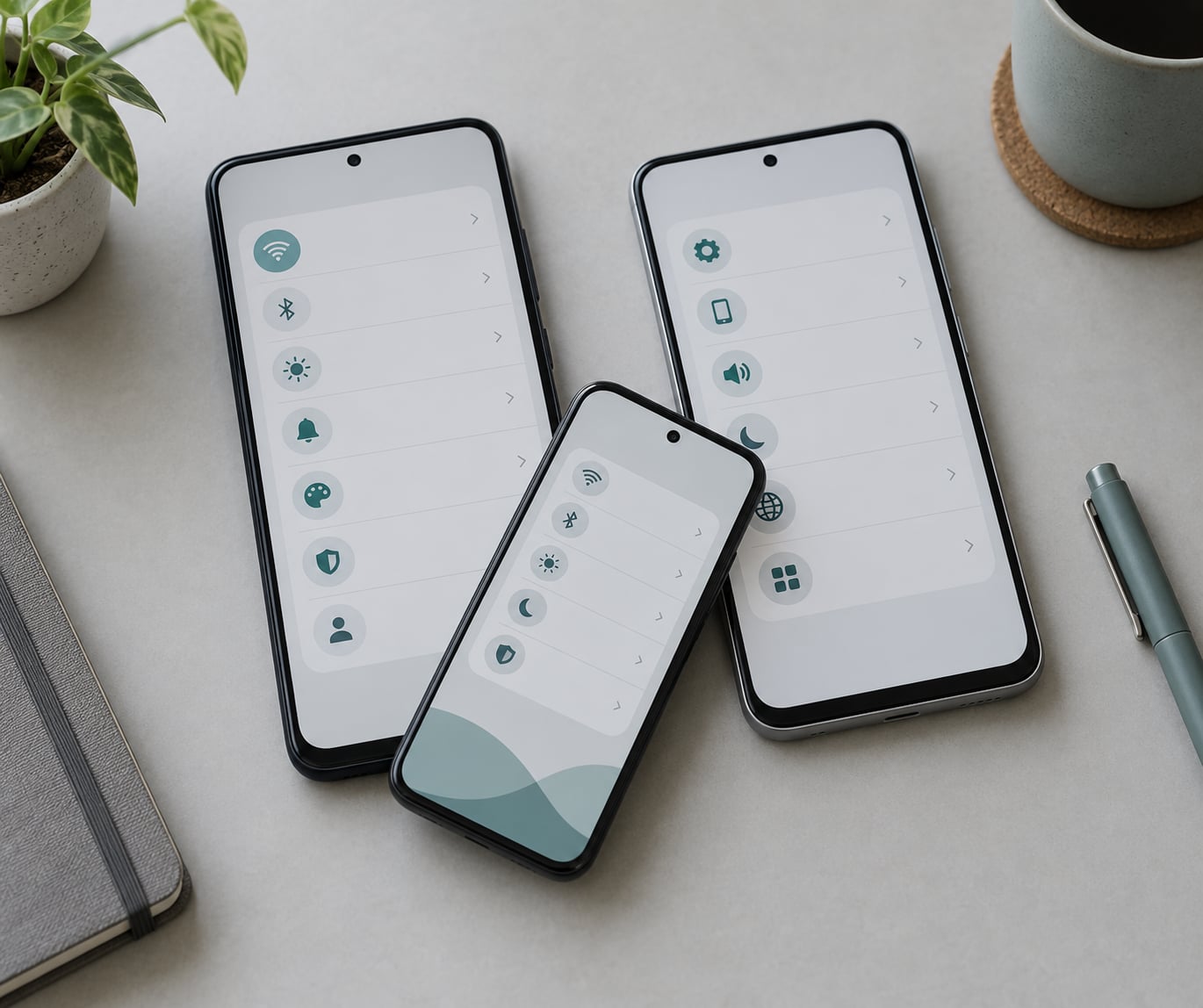
Here is how the labels differ by manufacturer:
- Pixel and stock Android: Settings > Apps > Default apps.
- Samsung One UI: Settings > Apps > Choose default apps. On some One UI versions the entry is named Set default apps.
- Xiaomi MIUI and HyperOS: Settings > Apps > Default apps. The same page is reachable from Settings > Apps > Manage apps and then choosing the app you care about.
- Huawei EMUI and HarmonyOS: Settings > Apps > Default apps, with browser and messaging defaults grouped under Apps > Default browser and Default messaging.
Samsung users often give up at this point because they are looking for a menu called Default apps and their phone says Choose default apps. It is the same screen.
Step 2: Choose the app you want to use
On the Default apps page you get a list of roles rather than a list of apps. Tap the role — Browser, Phone, SMS, Home, Email — and you get the installed apps that can handle it. Tap your choice, and Android asks you to confirm with a dialog that names the role you are changing.
That confirmation step is the part people miss when they try to change default apps on Android quickly and then wonder why nothing stuck. Tapping an app is not enough; you have to tap the confirming button before the change is applied.
Some roles only list apps that are genuinely capable. If your preferred mail app does not appear under Email, it may only handle accounts through its own setup screen. The table below covers the roles you are most likely hunting for.
| Category | What it controls | Usual reason to change it |
|---|---|---|
| Browser | Every web link tapped outside a social app | Switching to a different browser engine or blocking trackers |
| Phone | Tap-to-call buttons and incoming call screens | A dialer with better call screening or spam blocking |
| SMS / Messaging | Text messages sent and received | RCS support, better group chats or end-to-end encryption |
| Home | The screen, app drawer and swipe gestures | A third-party launcher with a different layout |
| mailto: links and shared documents | A mail client that handles work accounts better | |
| Camera | Camera buttons in other apps | A camera app with manual controls you like |
| Photos / Gallery | Tapping an image opens this viewer | Better editing or cloud backup behaviour |
| PDF / Document | Tapping a PDF file | Annotation, drawing or a shared library |
| Assistant | The assistant button, voice wake word and long-press home | Moving from Bixby to Google Assistant or another assistant |
| Wallet | Tap-to-pay and NFC payment cards | Moving cards between wallet apps |
Roles you cannot find — Photo picker, video player, navigation — are not always listed separately. Those file types are usually handled through the Open by default section of a single app’s info page, which is the next method.
Step 3: Confirm the change and test it
Test it the way a user would. Tap a web link in your messages and see which browser opens, or tap a photo in your gallery and watch which viewer appears. If the old app still opens, the change did not take.
You can also verify it in settings. Go back to Settings > Apps, find the app you just made default, tap its name, then tap Open by default (Samsung calls it Set as default apps). The chosen app is listed there with an option to clear it.
If you set the wrong one, revert it the same way: open that role again, choose the app you actually want, and confirm. Nothing is permanent and nothing needs uninstalling.
Step 4: Change defaults through the app itself
Most apps offer their own route in, and it is quicker. When you first open a new browser it usually asks to become your default and deep-links straight into the right screen. Tap it and you are done in two taps.
Otherwise, open the app, find Set as default or Make default in its settings menu, and Android will show the same list of roles it can take over.
Before you do that, clear any previous default so you are not switching between two apps that each think they own the job. Open the app you are replacing, tap its info page in Settings, tap Open by default, then Clear default preferences.
When Android asks you to pick an app for a single link, the pop-up offers two choices: Just once, and Always. Just once applies to that tap only, Always sets the default for that category going forward. Users who keep seeing the pop-up are tapping Just once without realising it.
Common Mistakes and Quick Fixes
Most complaints about how to change default apps on Android fall into one of the patterns below. Work down the row that matches your symptom.
| What you see | What is happening | Fix |
|---|---|---|
| Default apps option missing or greyed out | A work profile, second user or parental control is managing the device | Remove the restriction, or search default apps in Settings and use the result directly |
| You tap Default apps and nothing happens | A screen recording overlay or accessibility service is intercepting taps | Turn off screen recording and accessibility tools, then restart the phone |
| Your change reverts after a few days | An update, a restore from backup or a carrier app reset the role | Set it again, then clear the other app’s default preferences so only one app claims the role |
| No Set as default button on Samsung | One UI labels the app-level screen Set as default apps | Open the app’s info page and look for Set as default apps instead |
| Links still open in the old app | The other app has an app link or verified link association for that site | In that app’s info page, turn off Open supported links for the sites that hijack you |
| Your app is not listed for a role | It does not declare support for that type of action | Use the app’s own Set as default option, or pick a different app |
| Two Apps entries in Settings | One is the full app list, the other is a per-app settings group | Open the top-level Apps entry — the one with a Default apps button — for the full list |
| Defaults gone after an uninstall | Removing the default app leaves the role unassigned | Assign a new default from the Default apps page; the category itself never disappears |
One case has no clean fix. Pre-installed carrier and OEM apps that are not true system apps can often be disabled but not fully removed without rooting. Disabling them stops them hijacking links, and it is reversible from the same screen.
On Samsung, Reset app preferences under the three-dot menu of the Apps page returns every default to factory values in one go. It also wipes per-app notification, background data and permission restrictions, so treat it as a last resort rather than a shortcut.
Frequently Asked Questions
Why can’t I open the default apps option on my Android phone?
It usually means a work profile, secondary user or parental control is managing the phone, because those block changes to app roles. Search u0022default appsu0022 in the Settings search bar, which usually opens the page even when the menu entry is greyed out. If that fails, restart the phone and check whether a screen recording overlay is swallowing your taps.
Why are there two Apps entries in Android Settings?
One is the master list of every app installed on the phone, where you manage notifications, storage and permissions. The other is a shortcut group that sometimes appears on top of that list and carries the Default apps button. Open the top-level Apps entry — the one that includes a Default apps or Choose default apps button — to see every installed app at once.
How do I change default apps on a Xiaomi phone?
On MIUI and HyperOS the path is Settings, then Apps, then Default apps. From there tap the role you want to change, such as Browser or SMS, and choose the app you prefer. Xiaomi also lets you reach the same setting from Settings, Apps, Manage apps, tap the app, then Set as default apps. The Settings search bar works too if the labels differ on your build.
How do I change default apps on a Samsung phone?
Samsung does not call the screen Default apps. Open Settings, tap Apps, then tap Choose default apps, which lists roles such as Browser, Home and SMS. Tap a role, choose the app you want and confirm the pop-up. To undo it, open the app’s info page and tap Set as default apps, then clear the existing default.
Why do links still open in the old app after I changed the default browser?
The app you are leaving may claim specific websites through verified app links, which override the browser default for those sites. Open that app’s info page in Settings, tap Open supported links, and turn it off for the sites that keep stealing your taps. If you previously answered Just once to the chooser, that choice also expires instead of persisting, so set the role again.
How do I reset all default apps at once on Android?
On stock Android, open Settings, tap Apps and tap the three-dot menu in the corner, then choose Reset app preferences. Every app role returns to the factory choice at once. Samsung and Xiaomi label the same option Reset app preferences too. Be aware it also clears per-app notification, background data and permission restrictions, so it fixes more than you wanted changed.
Conclusion
Start by opening Settings and searching default apps. That one action works on Samsung, Xiaomi, Pixel and Huawei alike, and it takes you to the same screen every brand hides under a different name.
Work through the categories one at a time rather than assuming a single switch covers everything — the browser role and the SMS role are set separately, and so is the assistant. Then test the apps you actually use by tapping a link, opening a photo and making a call.
If a change does not stick, clear that app’s default preferences before you set it again. Two apps claiming the same role is the most common reason a swap quietly undoes itself.