Android Private DNS is a built-in setting on Android 9 and newer that encrypts the domain lookups your phone makes, so your ISP, the coffee shop router or anyone else on the same Wi-Fi cannot read the list of sites you are visiting. Turning it on takes about a minute. Open Settings, tap Network and internet, tap Private DNS, choose Private DNS provider hostname, paste a hostname such as one.dot.one.one.one, and tap Save.
That is the whole trick, and it works without installing an app. Below is the exact path for each phone brand, the provider hostnames worth using, how to confirm the encryption is genuinely active, and what to do when something breaks.
Table of Contents
- What You Need
- Step-by-Step: How to Use Android Private DNS
- How to open Private DNS settings on your phone
- Choose a Private DNS provider
- Enter the hostname and save
- Verify that Private DNS is active
- Test browsing and troubleshoot the connection
- Common Mistakes
- Frequently Asked Questions
- Does Android Private DNS work on every Android phone?
- Is Android Private DNS the same as using a VPN?
- Which Android Private DNS provider should I choose?
- Can I enable Private DNS only on Wi-Fi?
- Does Android Private DNS change my IP address or hide my browsing activity?
- Conclusion
What You Need
You need three things, and two of them are free.
- Android 9 Pie or newer. The Private DNS menu simply does not exist on Android 8 and older, and a few heavily customised older builds hide it too.
- A working internet connection, Wi-Fi or mobile, because Android validates the hostname by opening a connection to it.
- A provider hostname, which is a name rather than a number. OpenDNS, Quad9, Cloudflare and AdGuard all publish one on their own sites.
One thing worth clearing up first: you may read that Android 11 removed manual Private DNS and forced you to use Cloudflare WARP. That is not true. Manual hostnames still work on current Android versions and on current Samsung One UI builds.
A hostname is a domain name, like dns.quad9.net. It is not an IP address, so do not paste 9.9.9.9 into that field. Android will reject it.
Step-by-Step: How to Use Android Private DNS
How to open Private DNS settings on your phone
On stock Android and Pixels, the path is Settings, then Network and internet, then Private DNS. On Samsung Galaxy phones with One UI, go to Settings, Connections, More connection settings, then Private DNS. Menus move between Android versions, so the fastest fallback is to open the Settings search bar and type Private DNS.
Xiaomi and Redmi phones running HyperOS put it under Settings, then Connection and sharing, then Private DNS. OnePlus puts it under Settings, then Network and internet, then Private DNS. If your brand is not listed here, the Settings search still lands on the right screen in nearly every case.
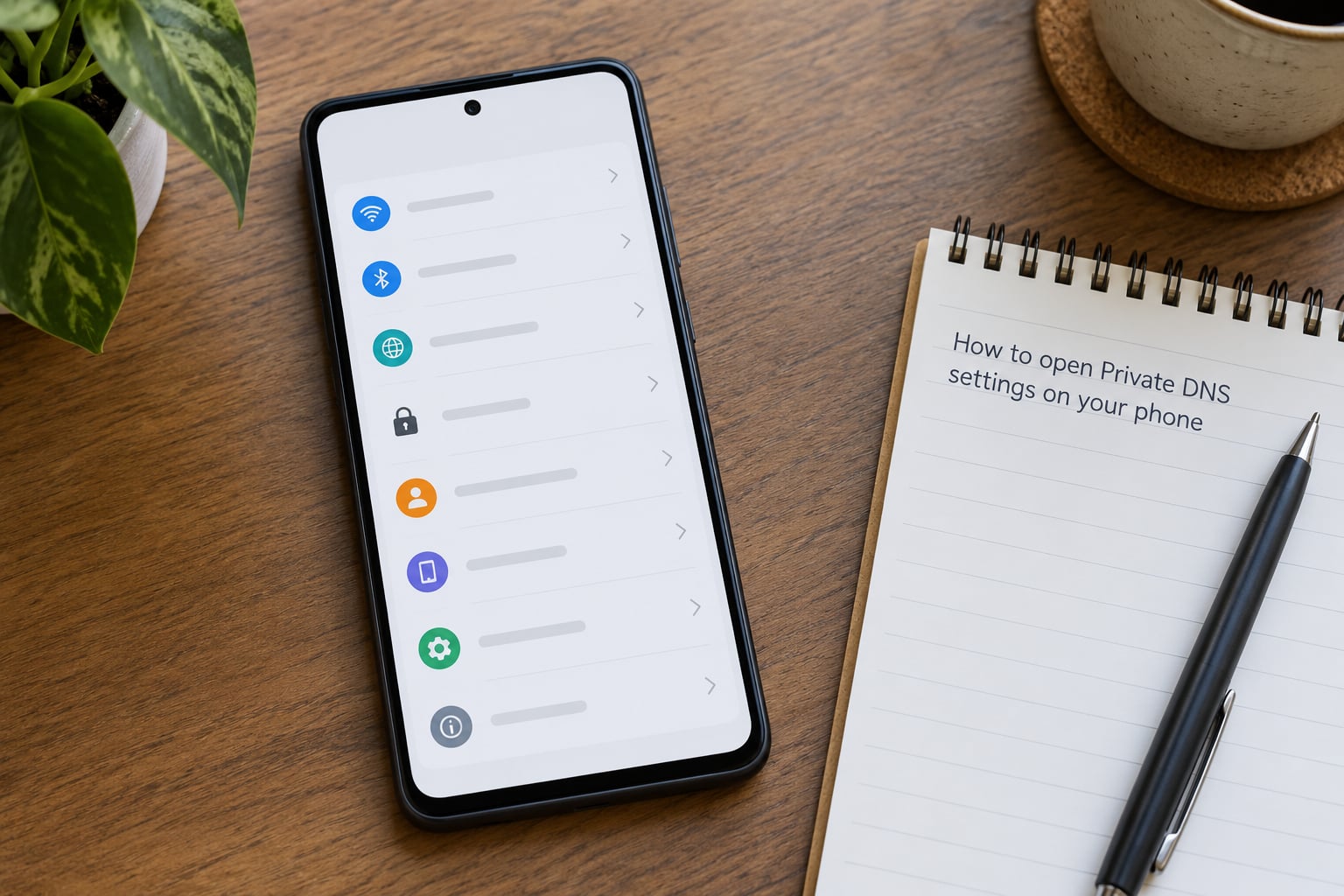
Screen readers often call the row Private DNS and the values Off, Automatic, or Private DNS provider hostname. Knowing those three labels makes the next step obvious.
Choose a Private DNS provider
Tap Private DNS and you get three options: Off, Automatic, or Private DNS provider hostname. Automatic encrypts only when the network in front of you supports encrypted DNS, which on a home Wi-Fi often means you get nothing at all. Choosing a hostname forces encrypted DNS everywhere, which is the reason to use this feature.
A few widely recognised hostnames you can paste:
| Provider | Hostname to paste | What it does |
|---|---|---|
| Cloudflare 1.1.1.1 | one.dot.one.one.one | Fast, no filtering, strong privacy commitment |
| Google Public DNS | dns.google | Fast and stable, no filtering |
| Quad9 | dns.quad9.net | Blocks known malware and phishing domains |
| AdGuard DNS | dns.adguard-dns.com | Blocks ads and trackers with no query cap |
| CleanBrowsing | security-filter-dns.cleanbrowsing.org | Family and security filtering |
| OpenDNS | dns.opendns.com | Long-standing free resolver, optional filtering |
Quad9 answers the who is 9.9.9.9 question: it is a non-profit resolver in Switzerland that filters known malicious domains by default. AdGuard is the popular pick when you want ad blocking without running a background VPN app. NextDNS, if you create a profile, gives you a custom hostname of your own such as your-name.dns.nextdns.io, with blocklists you can edit from any browser.
Whichever you pick, type only the hostname exactly as the provider documents it. No https:// prefix, no trailing slash, no web address, no IP address.
Enter the hostname and save
Select Private DNS provider hostname, paste the address into the text field, and tap Save. If the hostname is wrong or unreachable, Android shows a warning that the hostname is invalid or could not be connected to, and the setting stays unset rather than half-working.
Typing by hand from memory is the usual reason for that warning. Copy the hostname from the provider’s own page instead.
Verify that Private DNS is active
Open Settings and go back to the Private DNS screen. If it shows Private DNS provider hostname with your hostname underneath, Android has a valid configuration. That confirms the setting, not the encryption, because Android will happily keep a hostname that has stopped answering.
To test the connection properly, open 1.1.1.1/help in your browser and look for Using DNS over TLS (DoT): Yes. On a phone using Private DNS, you should see Yes. If it says No, your queries are leaving in plain text.
A normal working connection proves nothing. Pages will load identically whether DNS is encrypted or not, which is exactly why the check above matters.
Test browsing and troubleshoot the connection
Open a few ordinary pages, then any app that behaved oddly before. If names stop resolving, the fix is fast: go back to Private DNS, set it to Automatic, and everything returns to how it was. You lose the setting but you never lock yourself out of your own phone.
If the phone is on mobile data, note that some carriers block the port encrypted DNS uses, which shows up as a hostname that never connects. Switching networks is a quick way to tell whether the carrier is the problem.
VPNs need one sentence of care. When a VPN app is running, Android routes DNS through the VPN, so your Private DNS hostname may be bypassed entirely. That is not a failure, but it does mean Private DNS is not adding protection at that moment. On privacy-focused forums the recurring question is exactly this, whether Private DNS fights an active VPN, and the answer is that the VPN normally wins for DNS routing while Private DNS covers the gaps between connections.
Common Mistakes
Pasting an IP address instead of a hostname. 1.1.1.1 is a valid resolver address but an invalid Private DNS field. Android wants the name, such as one.dot.one.one.one.
Assuming Private DNS is DNS over HTTPS. Android’s built-in Private DNS uses DNS over TLS, a different protocol on a different port. Apps such as Cloudflare’s 1.1.1.1 app, when used in DoH mode, route DNS over HTTPS through a local VPN. Same privacy goal, different mechanism, and the VPN route can conflict with a VPN app you already run.
Expecting your IP address to change. It will not. Your ISP still sees which IP addresses your phone connects to. Private DNS hides the domain lookup step, nothing more.
Losing the setting after an update or a repair. A factory reset, a major system update, or an OEM ROM restore can drop Private DNS back to Off or Automatic. Re-check it after any system update.
Failure on hotel or airport Wi-Fi. A captive portal has to redirect you before you can sign in, and it does that with plain DNS. With a strict hostname set, the redirect never happens. Fix: join the network, set Private DNS to Automatic, sign in to the portal, then switch back.
Changing it only for Wi-Fi or only for mobile data. Android applies Private DNS device-wide. If you want different behaviour per network, you need per-app tools rather than this setting.
A quick expectations check before you decide it worked: encrypted DNS means your ISP cannot read the domain names you look up. It does not hide your IP address, it does not hide the hostnames inside your HTTPS connections, and it does not stop an employer or school from logging traffic on a managed device.
Frequently Asked Questions
Does Android Private DNS work on every Android phone?
It works on Android 9 Pie and later on any phone, but some heavily customised builds hide the menu. On stock Android it is Settings, Network and internet, Private DNS. Samsung uses Settings, Connections, More connection settings, Private DNS. If you cannot find the row, search Private DNS in the Settings search bar, or check that a system-level restriction from a school or employer has not disabled it.
Is Android Private DNS the same as using a VPN?
No. Private DNS encrypts only the step where your phone looks up a domain name. A VPN encrypts all of your traffic and hides your IP address from the sites you visit. Private DNS needs no app, no login and no ongoing connection, which is why it uses far less battery than an always-on VPN-style ad blocker.
Which Android Private DNS provider should I choose?
Cloudflare at one.dot.one.one.one is the safe general pick for speed and a strong privacy policy. Quad9 at dns.quad9.net adds malware filtering, and AdGuard at dns.adguard-dns.com blocks ads and trackers with no query cap. If you want editable blocklists, create a NextDNS profile and paste your personal hostname.
Can I enable Private DNS only on Wi-Fi?
Not through the built-in setting. Android applies Private DNS to every network the phone uses, Wi-Fi and mobile data alike, which is the point of enabling it. If you only want filtering on Wi-Fi, you would need a per-app filtering tool or a VPN app with per-network rules instead.
Does Android Private DNS change my IP address or hide my browsing activity?
It does not change your IP address, and it does not hide everything about your browsing. Encrypted DNS stops your ISP and anyone on the same network reading the domain names your phone looks up. Your IP address, the websites you connect to, and the hostnames inside your HTTPS connections remain visible to the sites themselves.
Conclusion
Start now: open Settings, search Private DNS, choose Private DNS provider hostname, paste one.dot.one.one.one or dns.quad9.net, and save. Come back to the same screen a day later to confirm the hostname is still there, since system updates can quietly reset it. Then open 1.1.1.1/help and check that DNS over TLS reads Yes. That is the whole setup, and it takes about a minute.