To transfer WhatsApp chats to a new phone, you use one of two official routes: a direct device-to-device transfer over Wi-Fi, or a cloud backup to Google Drive on Android and iCloud on iPhone. Your chat history belongs to your phone number, not to the handset, so it can follow you — as long as one of those two routes runs before you wipe the old device.
Both methods take minutes for a normal chat history, longer if your media library is big. The part that goes wrong is rarely the transfer itself. It is the restore step, an interrupted Wi-Fi connection, or somebody trading in the old phone before checking the new one. This guide covers every combination of old and new device, plus the failure messages people actually hit.
Menu paths below follow the current WhatsApp, Android and iOS builds in 2026. If your screen looks different, look for the same words a little further down the list — labels drift, structure does not.
Table of Contents
- Quick Answer: the two official ways
- What You Need
- Two settings worth changing before a long transfer
- A note for Xiaomi, Redmi and Poco owners
- A warning about Samsung Smart Switch and similar tools
- Step-by-Step: How to Transfer WhatsApp Chats to a New Phone
- Back Up WhatsApp Chats on Android
- Transfer WhatsApp Chats from Android to Android
- Transfer WhatsApp Chats from iPhone to Android
- Back Up and Restore WhatsApp Chats on iPhone
- Verify That Your WhatsApp Chats Transferred
- Common Mistakes
- The transfer says “searching for new phone” and never finds it
- The transfer fails at 97 percent with “There was a problem”
- The restore aborts at 30 to 40 percent
- Chats are there but all the photos are missing
- WhatsApp restored nothing at all
- Messages arrive but old history is missing
- The transfer stops when the screen locks or a call arrives
- Wrong Google or Apple account on the new phone
- You no longer have the old phone
- Moving from a personal account to WhatsApp Business
- Frequently Asked Questions
- Can I transfer WhatsApp chats from Android to iPhone?
- Does a WhatsApp backup include photos, voice notes and calls?
- Why are my WhatsApp chats missing after I set up my new phone?
- Can I transfer WhatsApp chats without an internet connection?
- What happens to deleted WhatsApp messages during a transfer?
- Can I move WhatsApp chats from a regular account to WhatsApp Business?
- Conclusion
Quick Answer: the two official ways
There are exactly two ways WhatsApp moves your chats, and which one you can use depends on the two devices involved.
- Direct device-to-device transfer (QR code). Both phones sit next to each other, unlocked and on the same Wi-Fi. The old phone shows a QR code, the new phone scans it, and chats move across directly. Fastest option and no cloud copy involved. Same-platform moves mainly: Android to Android, and iPhone to iPhone on recent versions.
- Cloud backup and restore (Google Drive on Android, iCloud on iPhone). You back up chats from the old phone, then install WhatsApp on the new phone, verify the same phone number and accept the restore prompt. This is the only route that survives losing the old handset, because the copy already lives off-device.
Switching platforms has its own path. iPhone to Android uses WhatsApp’s own Move chats to Android flow. Android to iPhone goes through Apple’s Move to iOS app during iPhone setup. Manufacturer migration tools such as Samsung Smart Switch do not carry WhatsApp chat history.
Whatever route you pick, keep the old phone powered on and untouched until you have verified the new one. That single habit prevents almost every disaster story in this topic.
What You Need
Ten minutes of setup saves an afternoon of failed transfers. Work through this list before you touch either phone.
- Both phones, unlocked and fully charged. A long transfer on 5 percent battery will die at the worst moment. Plug both in.
- WhatsApp updated on both devices. Open the app store and update before you start. Outdated builds are one of the top causes of a transfer that hangs on “searching for new phone”.
- The same phone number active on the new phone. Install the SIM and get SMS working on the new handset first, then verify the number in WhatsApp. If the new phone cannot receive the verification code, nothing else will work.
- The correct cloud account already on the phone. Android needs the Google account that has enough free Drive space. iPhone needs iCloud switched on, plus enough iCloud storage for your chat backup.
- Free storage on the new phone. A restored chat history can be several times larger than the app itself. Users reporting restore aborts at 30 to 40 percent usually had enough space for the app but not for the unpacked backup.
- The 2-Step Verification PIN. If it is switched on, you will need it during verification on the new phone. Know it before you start, because a wrong PIN locks the account.
- Wi-Fi you trust. Prefer a 5 GHz network on a router you control rather than public Wi-Fi in a shop or airport.
- A little time and patience for the media. A text-only backup of a few thousand messages is quick. A backup with years of photos and videos runs into gigabytes and can take hours.
Two settings worth changing before a long transfer
On Android, set Settings > Display & brightness > Screen timeout to Never, and turn off Battery Saver. A screen that locks or a saver that kills background work can quietly end a transfer that looked fine.
Put your phone in Do Not Disturb. Calls, alarms and app switching are the most common interruption reported in community troubleshooting threads, and one notification at 60 percent can undo the whole run.
A note for Xiaomi, Redmi and Poco owners
On Xiaomi HyperOS and older MIUI builds the WhatsApp menu path is the same, but the phone fights you harder. Turn off MIUI’s battery optimisation for WhatsApp in Settings > Apps > Manage apps > WhatsApp > Autostart, and allow Background activity in the same panel. Do the same for Google Play services if the restore stalls without an error.
If you are moving between Xiaomi devices, wipe the WhatsApp app data on the old phone only after the new phone is verified.
A warning about Samsung Smart Switch and similar tools
Samsung Smart Switch, Xiaomi’s phone clone tools and most other manufacturer migration apps move apps and photos but not WhatsApp chat history. Users on r/AndroidQuestions describe opening Smart Switch and being told it “didn’t detect any apps” after excluding everything except apps, with no non-paywalled fix. Use WhatsApp’s own flow instead, and treat the manufacturer tool as a separate task.
Step-by-Step: How to Transfer WhatsApp Chats to a New Phone
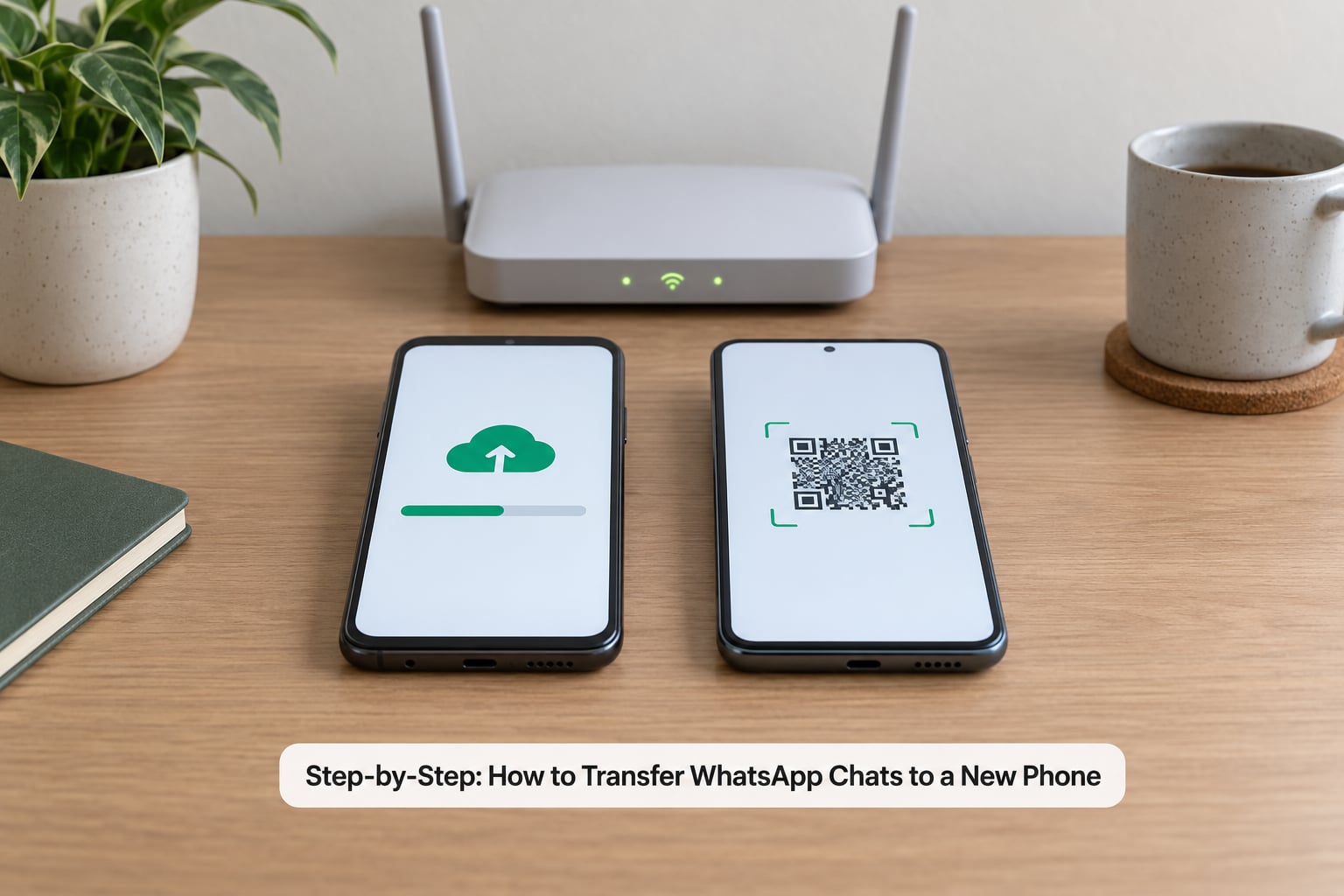
Work in this order: back up on the old phone first, always. Even if you plan to use a direct QR transfer, a backup costs nothing and it is your fallback when a direct transfer dies at 97 percent.
Back Up WhatsApp Chats on Android
On Android, chat backup lives three taps deep. Open WhatsApp, tap the three-dot menu at the top right, then Settings > Chats > Chat backup.
In that screen you get two storage choices. Google Drive backup uploads an encrypted copy to your Google account. Local backup writes a file to the phone’s own storage, which is useful when you want the copy offline but useless the moment you wipe that phone. For a device move, turn on Google Drive.
Tap Back up. A progress bar appears with the size of the backup. When it finishes, WhatsApp shows the timestamp under the backup entry — that timestamp is your proof it worked. Write it down; you will want it when you are staring at Drive wondering which file is the right one.
To shrink the backup before it runs, toggle Include videos off. Photos and documents still come across, and video files are almost always the bulk of the weight. For most people moving phones, missing cached video is a much smaller loss than a failed transfer.
Now turn on automatic backups so you have a recent copy at all times. In the same screen, tap Auto backup and choose daily, weekly or monthly. Daily is the sensible default on a phone you carry daily.
If you want the backup encrypted with a password, tap End-to-end encrypted backup and set one you will genuinely remember. There is no reset link. Store the password in your password manager before you enable it, because a forgotten password means that backup cannot be restored at all.
Transfer WhatsApp Chats from Android to Android
There are two ways to move chats from Android to Android. The direct transfer takes a few minutes on the same Wi-Fi network. The cloud restore takes longer but survives a lost old phone. Choose the direct transfer when both handsets are in front of you, which is almost always.
On the old phone, open WhatsApp and go to Settings > Chats > Transfer chats. WhatsApp checks that your Google Drive backup is finished first and will refuse to continue otherwise, so let any pending backup complete before you start.
Keep the old phone on its home screen. On the new phone, install WhatsApp and tap Agree and continue. Verify your number. When WhatsApp asks how you want to import your data, choose the option to import or transfer from the previous phone rather than skipping it.
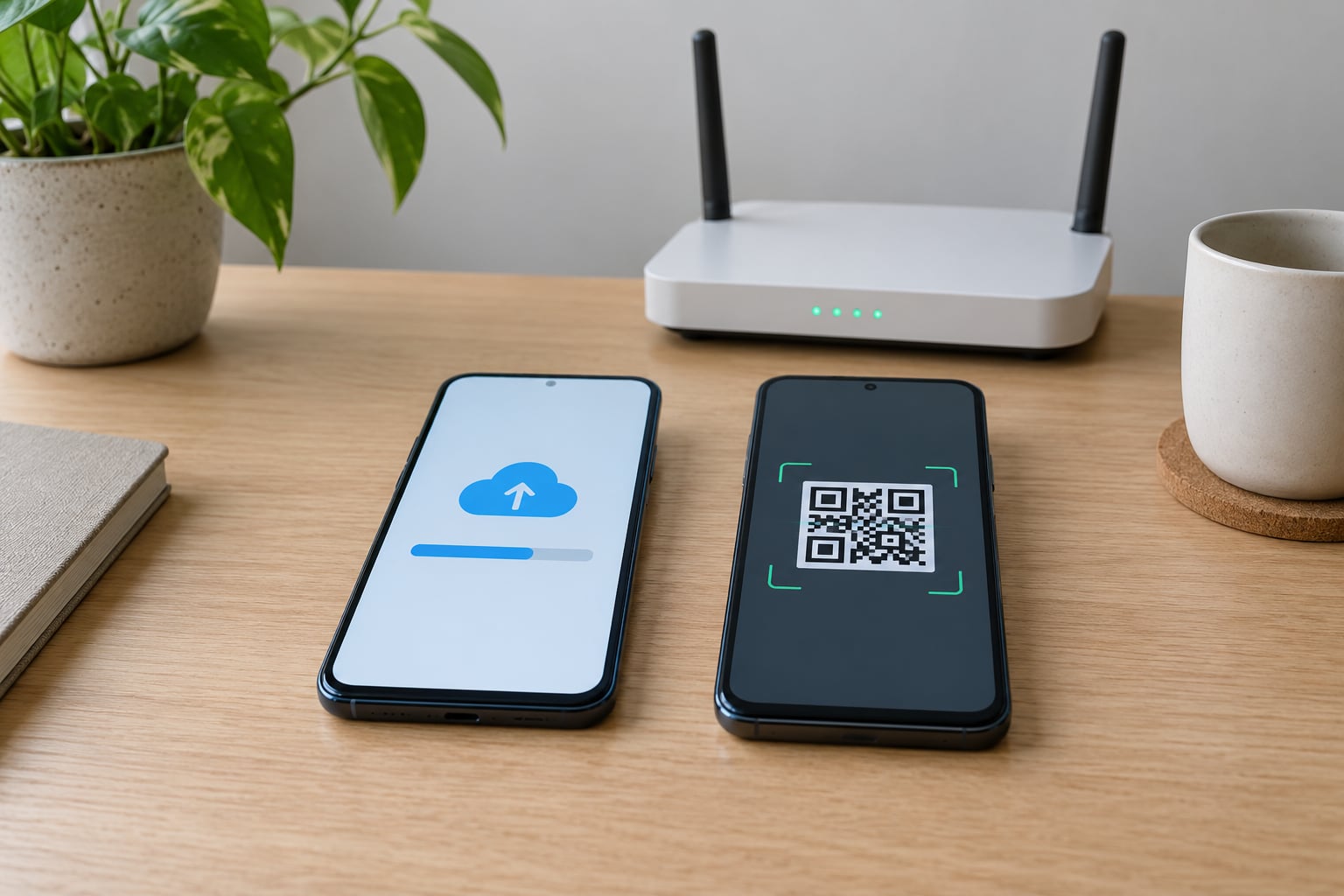
Scan the QR code shown on the new phone with the old one. The code refreshes every few seconds, so line the scanners up quickly rather than hunting for a stable frame.
Choose whether to transfer chat history and media. Keep both ticked unless your media library is enormous. WhatsApp shows the two phones next to each other and starts the transfer over Wi-Fi peer-to-peer, without routing through your Google account.
How it worked: the new phone shows a progress bar with a percentage, and the old phone shows a matching counter. Reaching 100 percent on both, then having WhatsApp open your chats on the new device, is the signal to continue. Any earlier and you still have work to do.
If you prefer the slower route, skip the QR entirely. Back up on the old phone to Google Drive, install WhatsApp on the new phone, verify the same number, and when the restore prompt appears choose Restore. The prompt only appears once, right after verification — if you tap past it, you will need to reinstall the app to get it back.
The most common mistake here is verifying on the new phone under a different Google account than the one holding the backup. WhatsApp will happily start a fresh, empty chat history and you will only notice when you open a conversation. Check the account on the old phone first.
Transfer WhatsApp Chats from iPhone to Android
Cross-platform moving from iPhone to Android is WhatsApp’s own transfer flow, not a manufacturer’s tool. It needs Android 12 or newer on the receiving phone.
Install the Move to Android app from Google Play on the new Android phone. Do this before you open WhatsApp on it, because WhatsApp checks for the app during setup and will complain if it is missing.
On the iPhone, update WhatsApp to the current version, then open Settings > Chats > Move chats to Android. You will be asked to grant WhatsApp full access to photos, contacts and files, and the iPhone will prepare the data.
Move to Android opens with a QR code. On the new phone, scan it and confirm the transfer of chats and media. WhatsApp uses a secure local connection rather than the internet, so an unstable broadband connection is not the issue here — though a stable one still helps with the restore afterwards.
The transfer finishes on the new Android phone. Open a few old conversations, check that photos load, and confirm group chats and calls appear before you touch the iPhone at all.
If the Move to Android option is greyed out, the usual causes are an out-of-date WhatsApp on the iPhone, a missing Move to Android app, or Android older than version 12. Fix one of those and the option returns.
Back Up and Restore WhatsApp Chats on iPhone
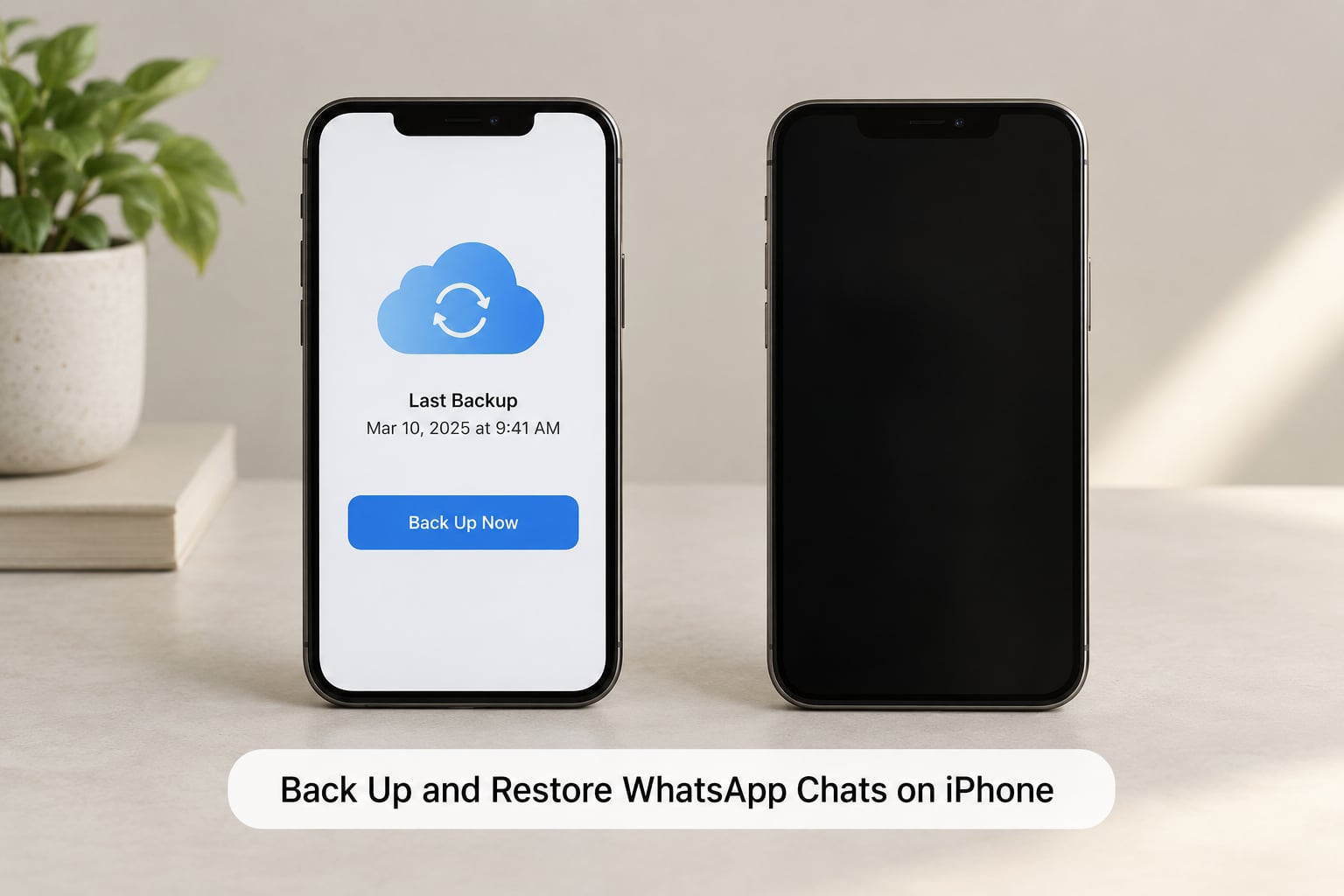
On iPhone, the path is different and shorter: tap Settings in the bottom tab bar, then Chats > Chat Backup. There is no three-dot menu.
Make sure iCloud Drive is switched on in that panel. Tap Back Up Now and let it run. The timestamp that appears under the backup entry confirms completion, exactly as it does on Android.
For iPhone to iPhone moves you have a choice. The cloud route is the dependable one: back up on the old iPhone, set up the new iPhone from its own backup or as a new device, install WhatsApp, verify the number, and choose Restore Chat History when prompted.
Important detail: the WhatsApp backup must be restored to iCloud, under the same Apple ID that made it. A backup sitting in Google Drive from a previous Android phone cannot be moved into iCloud, and restoring it on an iPhone is not possible. If you need to switch from Android to iPhone, the Move to iOS app during setup is the route.
Recent iOS versions also support a direct transfer between two iPhones using the same QR code flow as Android. It is quick, but the iCloud route remains the one to fall back on when the direct connection fails, and it is the only option if the old iPhone is already gone.
If you have two-step verification switched on, have the PIN ready. On restore, WhatsApp can also ask for the end-to-end encrypted backup password if you set one when the backup was created.
Verify That Your WhatsApp Chats Transferred
Verification takes two minutes and it is the step people skip. Do not wipe, trade in or factory-reset the old phone until you have worked through this list.
- Open a conversation from two or three years ago. Scroll deep into the thread. Recently transferred messages are the ones that show up first.
- Search inside a chat for a word you know was used. In-chat search proves the database came across, not just the app shell.
- Check starred messages. Open Settings > Chats > Starred messages. A starred item that has vanished means the restore was partial.
- Open three photos and one video. Media loads from the backup, so a photo that will not open points to an incomplete restore rather than a missing chat.
- Play a voice note and send yourself a test voice note. Confirms audio files came across in both directions.
- Open a group chat. Group history often shows up separately and is the first thing to be missing in a partial restore.
- Check the Calls tab. Call logs live in the chat history, but older call entries are worth a look because some versions restore them partially.
- Confirm your settings carried over. Archived chats, disappearing-message timers and your chat wallpaper are the ones people miss most.
Two things never move, whatever route you use. Your WhatsApp profile photo and About text belong to your account and re-download from the server. Deleted messages stay deleted — a transfer cannot resurrect anything you or the other person removed, and disappearing messages that already expired are gone.
Peer-to-peer payment records in some markets also behave differently across platforms. Anyone relying on payment chat history as an accounting record should keep their own copy rather than trusting the migration.
Once the checks pass, keep the old phone switched off and stored for a week. Not erased, stored. Two weeks of knowing you could go back is worth more than the small amount of storage you reclaim.
Common Mistakes
These are the failures that come up again and again, in roughly the order people hit them.
The transfer says “searching for new phone” and never finds it
Usually the new phone is not on the same Wi-Fi network, or WhatsApp on the old phone is out of date. Turn off mobile data on both phones so Wi-Fi is the only route, confirm both are on the same network name, and update both apps. Restarting the old phone and reopening WhatsApp also clears a stale Bluetooth discovery state.
The transfer fails at 97 percent with “There was a problem”
Almost every 97 percent failure is the last stage, when media is finalised. In community reports the same users had already cleared caches, checked permissions, confirmed storage and even tried a second Google account. What tends to fix it: turn off Wi-Fi peer-to-peer interference by restarting both phones, disable battery optimisation for WhatsApp, and run the transfer again with the new phone screen on and idle. If it keeps failing, switch to the Google Drive backup and restore route, which is slower but far more forgiving.
The restore aborts at 30 to 40 percent
This one is about space or the backup itself. Free up considerably more than the reported backup size — unpacked history plus app plus media can need two to three times the number. Then check that you are restoring the newest backup, not an old partial one. Some users made progress by deleting older backups from Drive and retrying.
Chats are there but all the photos are missing
Usually the backup was made with Include videos off, or was interrupted near the end before media finished uploading. Rebuild the backup with media included and restore again. Photos will then download from WhatsApp servers on the new phone as you open them.
WhatsApp restored nothing at all
The restore prompt only appears immediately after you verify your number. If you tapped past it, reinstall WhatsApp and verify again. And confirm the backup came from the same Google account or Apple ID now active on the phone.
Messages arrive but old history is missing
The backup was never completed. An interrupted upload leaves no usable backup, and WhatsApp will happily restore an empty one. Go back to the old phone, start the backup again, watch the progress bar reach the end, and note the timestamp.
The transfer stops when the screen locks or a call arrives
Set the screen timeout to Never, turn off battery saver, enable Do Not Disturb, and keep both phones charging. On iPhone, wake the screen periodically during the run.
Wrong Google or Apple account on the new phone
Before verifying the number, open Settings > Accounts on Android or Settings > [your name] on iPhone and confirm which account is active. Signing into the wrong one means WhatsApp sees no backup at all.
You no longer have the old phone
Your history is not gone if a completed backup exists. On Android, install WhatsApp, verify the number and accept the restore prompt; the backup is in the Google account tied to that number. On iPhone, the same applies with iCloud. If no completed backup exists, there is no official path to recover the chat history — be careful with any third-party “recovery” app claiming otherwise.
Moving from a personal account to WhatsApp Business
You cannot merge two accounts onto one phone, and chat history does not follow you between the two apps. Some users convert to a normal WhatsApp account, move the phone, then convert back to Business on the new device. Make a fresh backup on the personal account before you start, because the conversion step changes which backup exists.
Frequently Asked Questions
Can I transfer WhatsApp chats from Android to iPhone?
Yes, but not with WhatsApp’s own QR transfer, which only works between two phones of the same platform. Use Apple’s Move to iOS app, which is offered during iPhone setup and carries WhatsApp messages over. A factory reset of the new iPhone is normally required, so back up everything else first and run the setup before adding your apps and photos.
Does a WhatsApp backup include photos, voice notes and calls?
It includes message history, photos, voice notes, documents, stickers and your chat settings. Videos are included by default, but you can switch them off to make the backup much smaller. Call history is stored in the chat database, so it normally restores too. Starred messages, archived chats and disappearing-message timers are part of the backup as well.
Why are my WhatsApp chats missing after I set up my new phone?
Almost always one of four things: you tapped past the restore prompt, you verified under a different Google or Apple account, the backup never finished uploading, or you opened WhatsApp on the new phone before the old one was backed up. Reinstall WhatsApp, verify your number again and watch for the restore prompt. If the prompt does not appear, no backup is being found.
Can I transfer WhatsApp chats without an internet connection?
The direct device-to-device transfer and the iPhone-to-Android Move chats flow run over a local connection between the two phones, so they work without internet. Cloud backup and restore genuinely do need internet, because the data travels to Google Drive or iCloud and back. If you are offline, use the QR transfer and do it on the same Wi-Fi network.
What happens to deleted WhatsApp messages during a transfer?
They stay deleted. A backup is a copy of what exists at the time it runs, so messages you removed, messages the sender removed and expired disappearing messages are not in the file and cannot be recovered by a transfer. The same applies to chats you deleted within the last few days, which WhatsApp still tracks separately rather than restoring them.
Can I move WhatsApp chats from a regular account to WhatsApp Business?
Not directly, because the two apps keep separate backups. Chat history does not move across apps on their own. The workaround some people use is to move the chats to a normal WhatsApp account, set up the new phone, then convert that account to Business there. Make a fresh backup first, since conversion changes which backup is available to restore.
Conclusion
Your WhatsApp history is tied to your phone number, so moving it is straightforward once you pick the right route: QR transfer for same-platform moves, Move to Android or Move to iOS when you are crossing platforms, and Google Drive or iCloud backup whenever the old phone might not be available later.
Start here: make a full backup on the old phone today and confirm the timestamp. Then run the transfer, verify old conversations and media on the new device, and only then think about wiping or trading in the old handset. Waiting a fortnight before you erase it costs you nothing and protects years of messages.